How to Present on Zoom and Keep Your Notes in View
To present on Zoom, share only your slides window, keep your camera on, and put your talking points right under the webcam so you can still look at people. Notch keeps them by the camera on Mac and Windows.
Free 7-day trial, no card required · From $7.99 a month · Mac and Windows
How to present on Zoom
Test first. Open your slides and join a test meeting to check your camera, microphone and lighting.
Put your notes under the webcam. Paste your talking points into Notch and move it to the top of the screen.
Share the slides window. Choose Share Screen, pick your slides window, then choose Share.
Look at the camera. Glance at a note, then say it to the lens. Check the slides only when you change them.
Keep your notes in view with Notch
Under your webcam
Your talking points sit in a small window at the top of the screen, next to the camera, on Mac and Windows.
Out of the screen share
With Hide from screen sharing on, people on the call see your slides but not your notes.
Moves as you speak
The script follows your voice and waits when you stop for a question. It runs on your computer in seven languages.

“Communicating complex scientific topics is an important part of my work. I’ve used Notch for several conference presentations and found it a useful addition to my presentation toolkit.”

Before the call
A team update, a sales demo or a client review goes better when the setup is done before anyone joins. Give yourself ten minutes:
- Join a test meeting from the Zoom desktop app and check your camera, microphone and speakers.
- Sit facing a window or a lamp, so the light is on your face, not behind you.
- Raise the laptop or camera so the lens is at eye level.
- Close email, chat and any tabs you don't want people to see. Turn on Do Not Disturb.
- Open your slides and your talking points, and put the slides on the first slide.
- Write down the one thing you want people to do or decide at the end.
If you present often, keep a short list of these steps and run through it each time.

Show yourself next to your slides
Your audience can see your face and your slides at the same time. In the Zoom desktop app on Windows and macOS, you can put your video on the slides instead of in a small tile.
- Choose Share, then pick your PowerPoint window (or Keynote on a Mac).
- Under the layout options, choose a presenter layout such as Side by side or Over the shoulder.
- Move or resize your video in the preview, then choose Share.
People who join from Zoom in a web browser see a normal screen share without your video on the slides.
Where to look while you present
On a video call, looking at the lens is how you look at people. When you look at the slides or the faces on screen, you appear to look down or to the side.
- Look at the lens when you make a point or ask a question.
- Glance at the slides only when you move to the next one.
- While you share, drag Zoom's video window to the top of the screen, near the camera, so faces are close to where you look.
- Speak a little slower than in a room. Audio on calls can lag, and short pauses give people time to follow.
Keep your notes next to the camera
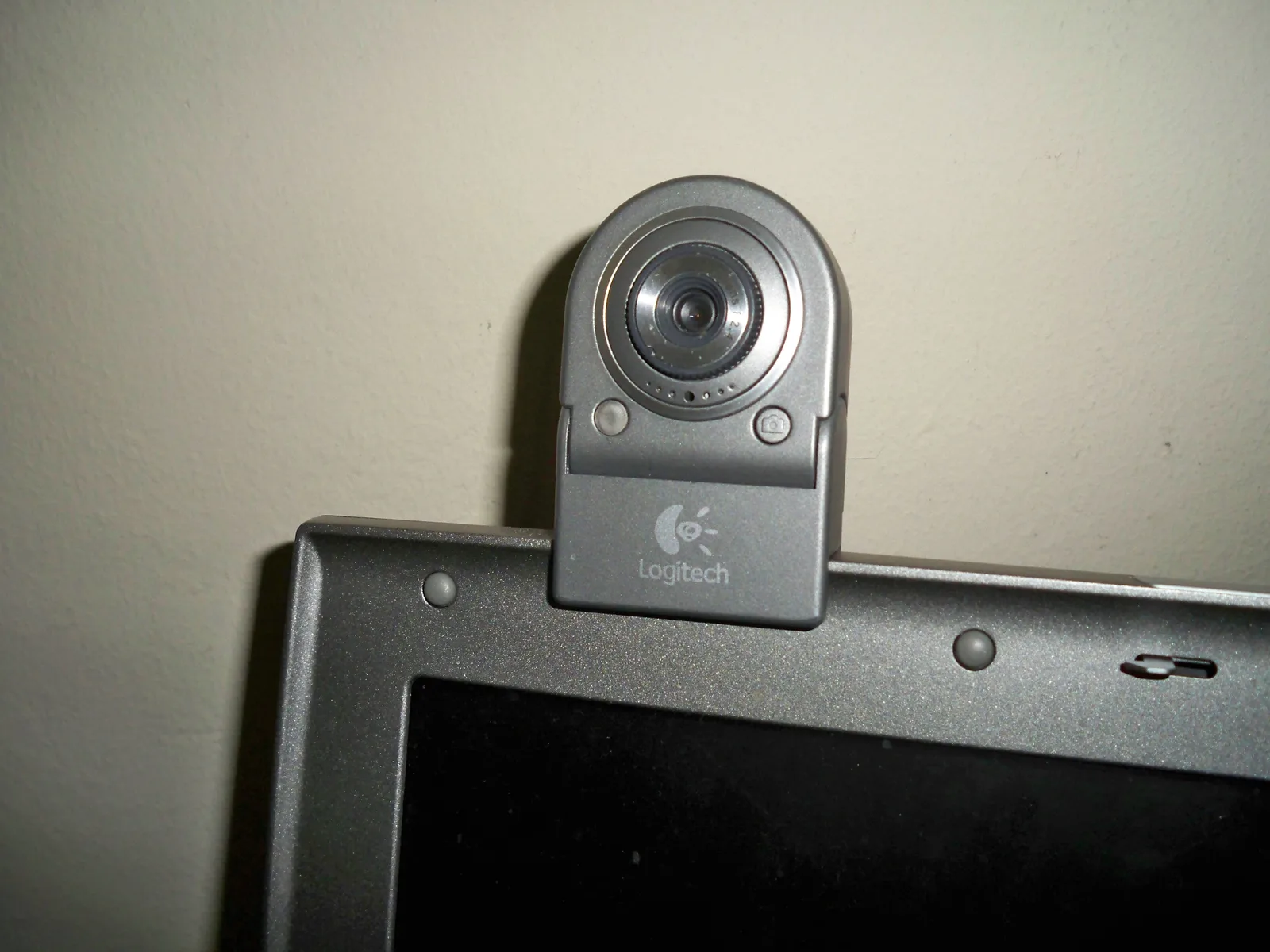
Notes on a desk or a second screen make you look away each time you check them. Put them just under the webcam instead, two or three lines at a time, so a quick glance keeps your eyes near the lens.
Notch is a teleprompter app for Mac and Windows that does this. It runs alongside Zoom as its own window, at the top of the screen next to the camera, and floats above your slides. Turn on Hide from screen sharing once, and Notch is hidden from Zoom screen shares on Windows 10/11 and macOS, so it stays out of the shared window or screen. It is also hidden from Microsoft Teams, Google Meet, Slack, Discord and OBS.
Write your notes as short talking points, not full paragraphs. How to present without reading your notes shows how to cut a script down and rehearse it. The Zoom teleprompter page covers placement, Voice and Manual modes and keyboard shortcuts in more detail.

Take questions without losing your place
Questions are part of a good Zoom presentation, so plan for them.
- Pause after each section and ask if anything is unclear. Count to five before you move on.
- Ask people to unmute or use the Zoom chat. Read each chat question out loud before you answer it.
- When you return, check your notes for the next point you haven't covered.
In Voice mode, Notch moves the script when it hears the words you wrote and waits while you answer a question. It follows your written script and doesn't understand unscripted talk, so after a long answer, glance back and carry on from the next line. Voice following runs on your computer in English, German, Spanish, French, Italian, Portuguese and Arabic.
Record the presentation
A recording helps people who couldn't join and gives you something to review. If you are the host, or the host gives you permission, choose Record in the Zoom toolbar.
With Plus or Pro, Notch can record the call on your computer and write the recap when it ends. When it sees a Zoom window, Notch offers to start a recap; nothing records until you choose to. No bot joins the meeting. You get a transcript with who said what, a summary, decisions, action items and timestamped chapters. Always tell people at the start that you are recording. The full steps are in how to record a Zoom meeting.
After the call
- Send the slides, or a link to the recording, the same day.
- List the decisions and who does what by when. A Notch recap gives you these to copy, and you can save it to Notion or turn action items into Linear issues.
- Note which questions came up, and add the answers to your talking points for next time.
Checklist
Before
[ ] Test meeting: camera, mic, light
[ ] Notifications off, extra tabs closed
[ ] Slides open on slide 1
[ ] Talking points under the webcam

During
[ ] Share the slides window
[ ] Look at the lens, not the slides
[ ] Pause for questions after each section
[ ] Tell people if you are recording

After
[ ] Send slides or recording
[ ] Send decisions and next steps
Frequently asked questions
Can people on the Zoom call see my notes?
Not if you use Notch with Hide from screen sharing turned on. Notch is hidden from Zoom screen sharing on Windows 10/11 and macOS, so people see what you share but not your talking points.
Should I share my whole screen or one window on Zoom?
Share one window, such as your slide show, in most cases. Only that window goes to the call, and you can still use chat and the participant list. Share the whole screen when you need to switch between several apps during a demo.
How do I see my speaker notes while presenting on Zoom with one monitor?
PowerPoint's presenter view needs a second monitor when you share on Zoom. With one monitor, run the slide show in a window and share only that window, then keep your talking points in a teleprompter such as Notch at the top of the screen.
Can I show my video on top of my slides in Zoom?
Yes. In the Zoom desktop app on Windows and macOS, choose Share and pick your PowerPoint or Keynote window, then choose a presenter layout such as Side by side or Over the shoulder. Participants on the Zoom web client see an ordinary screen share without your video on the slides.
Can I record my Zoom presentation?
Yes. Use Zoom's Record button if you are the host or have permission. With Plus or Pro, Notch records the call on your computer with no bot in the meeting and writes a transcript, summary and action items. Tell people that you are recording.
Does Notch work with Zoom on Mac and Windows?
Yes. Notch runs alongside the Zoom desktop app, or Zoom in your browser, on Mac (Apple Silicon and Intel) and on 64-bit Windows 10 and 11. It is a separate app, so there is nothing to install in Zoom and nothing for the host to approve.