How to Record a Zoom Meeting
To record a Zoom meeting, use Zoom's own Record button if you are the host, or a desktop app such as Notch that records on your computer and writes the recap for you. Zoom's computer recording works on free accounts, but only the host can start it unless they give you permission. Notch records any Zoom call on Mac or Windows with no bot in the meeting, then gives you the transcript, summary and action items.
Record a Zoom meeting with Notch
Download Notch for Mac or Windows and start the free 7-day trial.
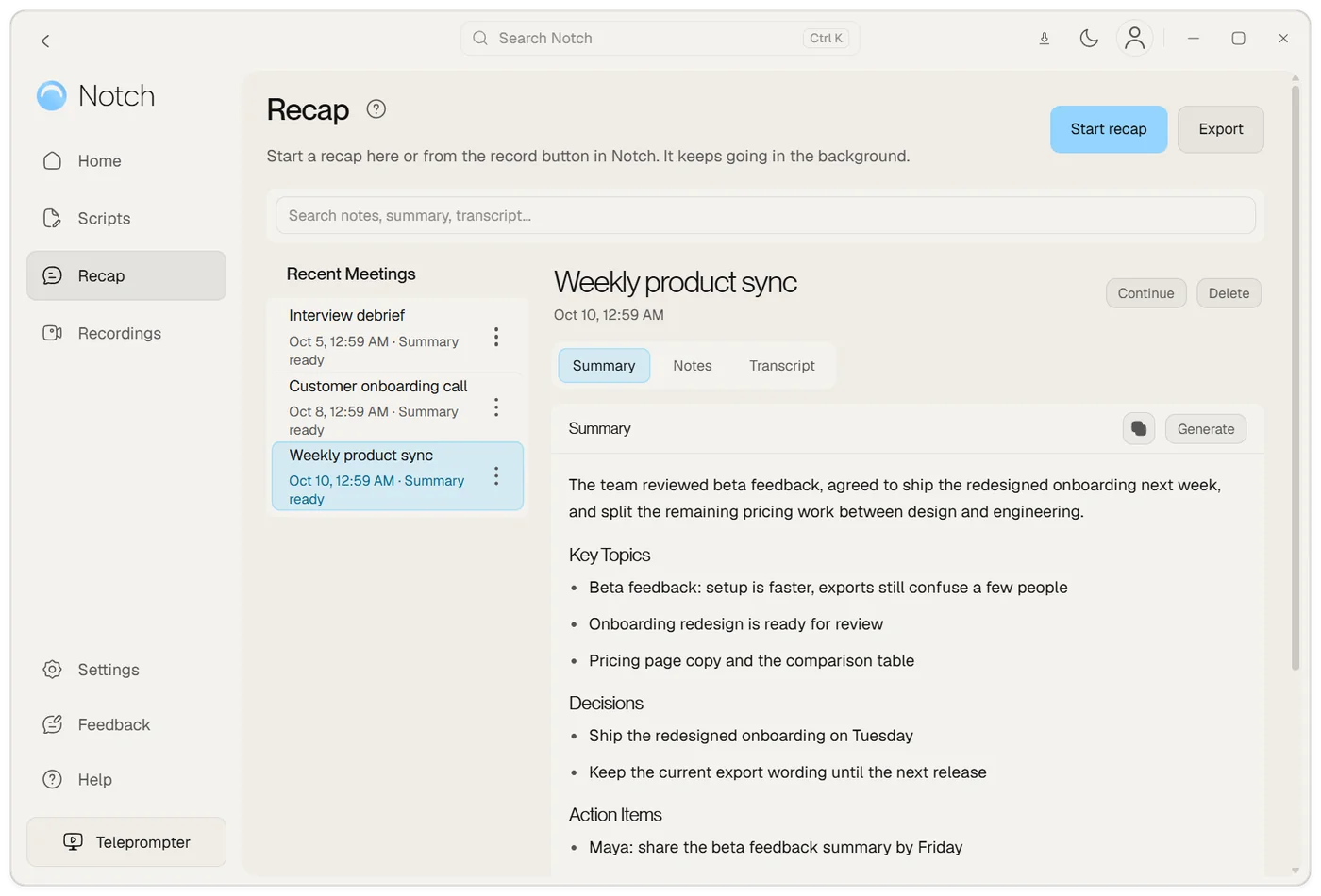
Join the Zoom call. When Notch offers to start a recap, choose Start, or choose the record button, then Meeting recap.
Tell everyone on the call that you are recording.
Choose Stop when the call ends. Notch writes the transcript, summary, decisions and action items.
Record with Zoom's built-in recorder
Zoom has two kinds of recording. Computer recording saves the video to your computer and works on free and paid accounts in the Zoom desktop app. Cloud recording saves it to your Zoom account and needs a paid Pro, Business or Enterprise licence.
- Start or join the meeting in the Zoom desktop app.
- Click Record in the meeting toolbar. If a menu opens, choose Record on this Computer or Record to the Cloud.
- Everyone sees a recording indicator while it runs.
- Click Stop recording or end the meeting. Zoom converts a computer recording and opens the folder when it's done.
If you aren't the host, the Record button may be missing. The host has to record, allow you to record, or make you a co-host. Cloud recording can only be started by hosts and co-hosts.
Get a transcript of a Zoom meeting
Zoom's audio transcript comes with cloud recording on a paid account, is processed after the meeting and supports English only. It doesn't apply to computer recordings saved on your device.
With Notch, the transcript comes with every recap. It labels you as You and each other person as a speaker you can name. Name someone once and Notch recognises their voice in later recaps; the voiceprints stay on your computer.
Record a Zoom meeting with Notch
Notch is a Mac and Windows app that records the call on your computer. No bot joins the meeting, and it works the same whether you're the host or a participant, so you can keep your own record of client calls. Ask the host and the other people first.
- It offers when you need it. When Notch sees a Zoom window, it offers to start a recap. Nothing records until you choose to.
- It runs in the background. Switch apps, share your screen or close the Recap page and the recording carries on. Pause it during a break.
- Your notes stay in view. Keep talking points in the Zoom teleprompter while the recap runs.
- It keeps video if you want it. Turn on Record video of meetings and the meeting window plays beside the recap, stored on your computer.
When you choose Stop, Notch uploads the audio once, transcribes it, and deletes the audio from your device once the transcript is saved. Recaps need an internet connection and use your plan's allowance.
What's in the recap
| Part | What you get |
|---|---|
| Summary | A short overview of what the call covered |
| Decisions | What the group agreed |
| Action items | Tasks, with who agreed to them |
| Chapters | The key discussion points, each with a timestamp you can jump to |
| Transcript | Every word, split by speaker |
You can export the summary and transcript as text or PDF, save the recap to Notion, or turn action items into Linear issues. The AI note taker page has more on how recaps work.
Ask before you record
Tell people at the start of the call that you are recording, and why. Many companies and countries require consent from everyone on the call. Zoom's indicator only appears for Zoom's own recordings, so when you record with Notch, saying it out loud is the notice.
Frequently asked questions
Can I record a Zoom meeting if I'm not the host?
In Zoom itself, only the host can record unless they give you permission or make you a co-host. Notch records on your own computer instead, with no bot in the meeting. Recording without permission can break the meeting's rules or the law, so always tell people and ask first.
Can I record a Zoom meeting on a free account?
Yes. Zoom's computer recording works on free (Basic) accounts in the desktop app. Cloud recording and Zoom's audio transcript need a paid Pro, Business, Education or Enterprise account.
How do I get a transcript of a Zoom meeting?
Zoom creates an audio transcript only for cloud recordings on paid accounts, and only in English. Notch writes a transcript with who said what for any Zoom call you record with it, along with a summary and action items, on Plus or Pro.
Where does Zoom save a local recording?
Zoom converts the recording when the meeting ends and opens the folder with the files on your computer. Cloud recordings are saved to your Zoom account instead.
Does Notch join the Zoom meeting as a bot?
No. Notch records the audio on your computer, so no extra participant appears in the meeting. The audio is sent once to make the transcript and then deleted.
Does it work on Mac and Windows?
Yes. Notch records Zoom meetings on Mac and on 64-bit Windows 10 and 11. On a Mac, capturing the other people's audio needs macOS 14.2 or later.