
How to Record a PowerPoint Presentation
To record a presentation in PowerPoint, select Record, turn on your camera and microphone, then choose Start recording and export the video. Notch records your slides and camera in one take on Mac and Windows.
Free 7-day trial, no card required · From $7.99 a month · Mac and Windows
Record a PowerPoint presentation with Notch
Download Notch for Mac or Windows and start the free 7-day trial.
Copy your speaker notes into the teleprompter and move it just under your webcam.
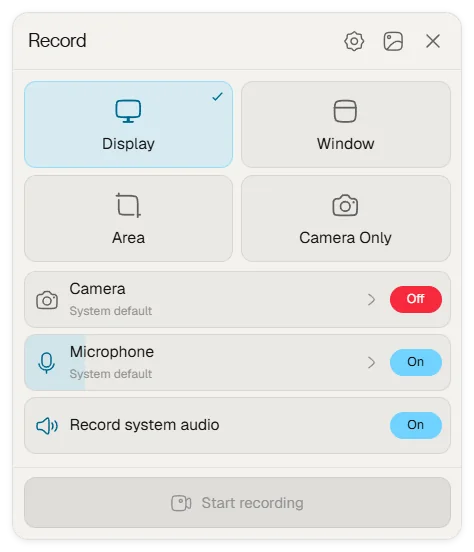
Start your slide show. Choose the record button, then Screen recording, and turn on your camera and microphone.
Present as you would live. When you stop, cut the mistakes and export an MP4 you can send.
What Notch adds to a recorded slide show
Any slides, one video
Notch records the screen, so it works with PowerPoint, Keynote, Google Slides or a PDF, with your camera in a corner.
Speaker notes that follow you
The teleprompter scrolls as you read your notes and waits while you explain a chart in your own words.
Edit instead of re-recording
Cut a stumble, remove silences in one press and zoom in on small numbers instead of recording the slide again.
Record a presentation in PowerPoint on Windows
PowerPoint for Microsoft 365 has a recorder built in. All its tools are on the Record tab, and the Record button sits at the top right of the window.
- Open your deck and select Record to open the recording view.
- Check the camera and microphone icons at the top. Select More options (···) to pick a different camera or microphone.
- Open Views and choose Teleprompter if you want your speaker notes at the top of the screen. It scrolls on its own at a speed you set.
- Select Start recording. A countdown runs, then PowerPoint records your voice, camera and any pen or laser pointer marks.
- Use the arrows to move between slides. Select Stop when you finish, then Play to check it.
Wait for each slide transition to finish before you speak. PowerPoint doesn't record narration during a transition, so the first words on a slide can go missing. To redo one slide, go back to it and record it again, or use Delete to clear the recording on that slide.
Record a presentation in PowerPoint on a Mac
On a Mac, select Record at the top right, or choose Record, then From Beginning or From Current Slide. This opens Recording Studio.
- Pick Teleprompter or Presenter view for your notes.
- Use the drop-down menus in the toolbar to turn the camera and microphone on or off. Turn the camera off for a voice-only narration.
- Use Record, Pause and Resume, then the Play button to review.
- To redo a part, select the bin button next to Record and record again.
- Press Esc or choose End show when you finish.
PowerPoint for the web can't record a slide show. Use the desktop app on either computer.


Export the recording as a video
A recorded deck is still a .pptx file. To send it to someone, turn it into a video. Select Export, then Export Video in the recorder on Windows, or Record, then Export to video on a Mac. You can also use File, then Export, then Create a Video.
| Quality | Size | Use it for |
|---|---|---|
| Ultra HD (4K) | 3840 × 2160 | Large screens; Windows 10 or later only |
| Full HD (1080p) | 1920 × 1080 | Slides with small text and charts |
| HD (720p) | 1280 × 720 | Email and quick team updates |
| Standard (480p) | 852 × 480 | The smallest file |
Keep Use Recorded Timings and Narrations selected, then save it as an MP4. A long deck can take up to several hours to export, so start a big one before you leave for the day.
When Notch is the better fit
PowerPoint's recorder suits a deck you narrate slide by slide. Notch suits a talk you want to give in one continuous take, the way you would present it live.
- You switch apps. A sales demo or a product walkthrough moves from slides to a browser or a spreadsheet. Notch records the whole display, so nothing drops out of the video.
- Your slides aren't in PowerPoint. Keynote, Google Slides and PDFs record the same way, because Notch records the screen.
- You want notes that keep pace with you. PowerPoint's teleprompter scrolls at a fixed speed. Notch follows your voice and waits when you stop to answer a point in your own words.
- You'd rather edit than re-record. Notch opens every recording in an editor with trims, zooms and captions.
Record your PowerPoint presentation with Notch
- Open your deck and start the slide show.
- Choose the record button on Notch, then Screen recording.
- Pick Display for a full-screen slide show or a demo that moves between apps. Pick Window if your slides play in a window.
- Turn on Camera and choose the bubble's shape, size and corner. Put it where it won't cover a chart or a slide title.
- Turn on Microphone and check that the level meter moves when you speak. Turn on Record system audio only if a slide plays a video with sound; on a Mac this needs macOS 14.2 or later.
- Choose Start recording, wait for the three-second countdown and look at the camera.
Use Pause between sections and Stop at the end. If your computer crashes or loses power, Notch keeps the recording and finishes saving it the next time it opens. The recording help guide covers every setting.

Keep your speaker notes by the camera
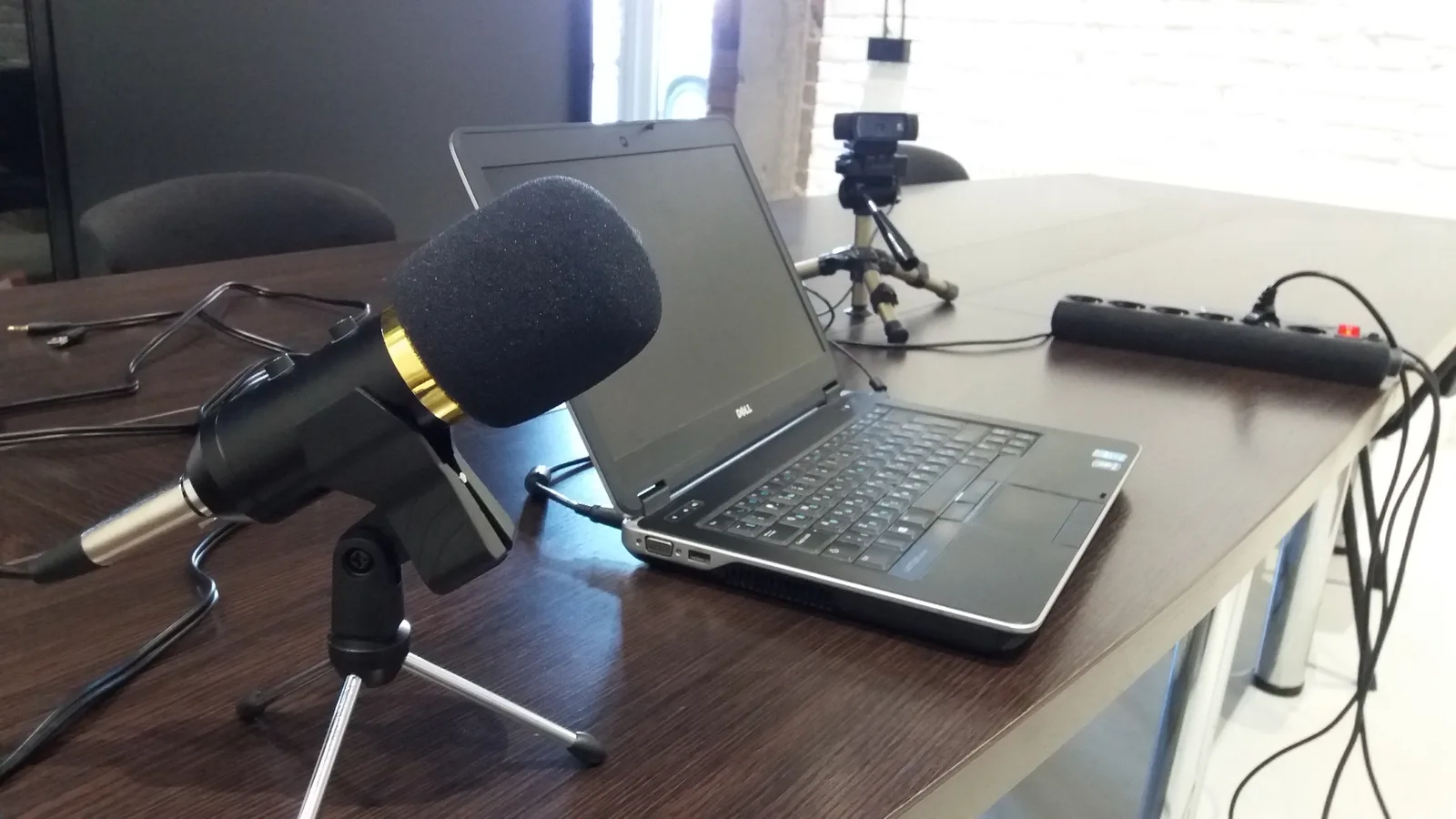
On one screen, the full-screen slide show covers PowerPoint's presenter view and your notes. Copy your speaker notes into Notch as one script and drag the teleprompter just under your webcam. Your eyes stay near the lens while you read.
Mark slide changes with a cue such as [slide 4], so you know when to click. Voice following skips anything in brackets. It works in English, German, Spanish, French, Italian, Portuguese and Arabic, and it runs on your computer. The PowerPoint teleprompter page has more on turning notes into a script.
While you record, Notch asks your computer to keep the teleprompter out of the video. Make a 10-second test recording first and play it back to check.

Trim, caption and export
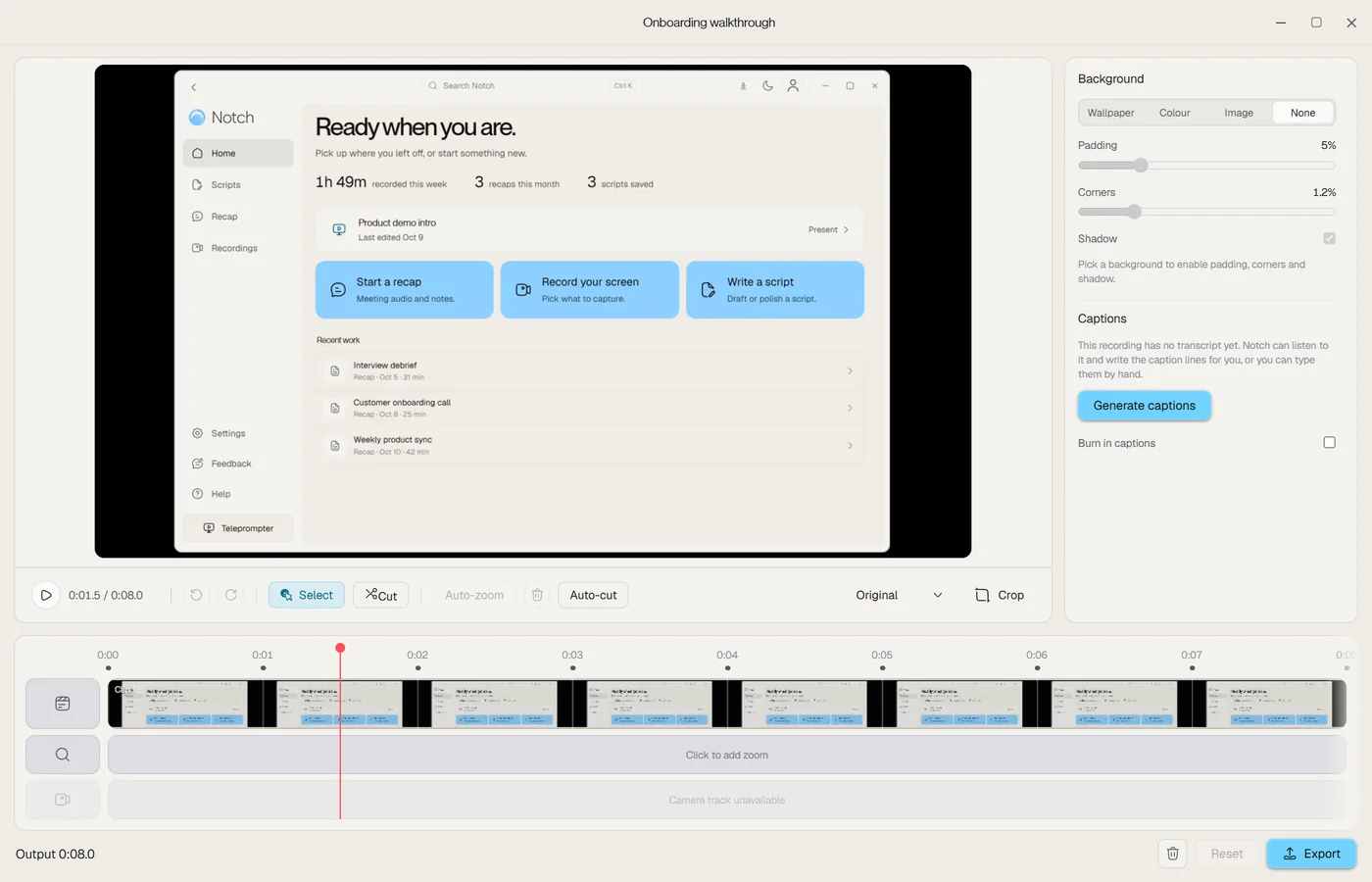
When you stop, the recording opens in the Notch editor. Your original file never changes, so you can undo any edit.
- Trim and cut: remove the quiet seconds at the start and any false starts. Auto-cut removes silences in one press.
- Zooms: move in on a small number, a chart label or a menu.
- Clean audio: reduce background noise and even out your voice, processed on your computer.
- Captions: generate them, fix any wrong words and burn them in. Captions use the cloud and come with Plus or Pro.
- Export: choose 1080p for slides with small text, then save the file.
What it costs
PowerPoint's recorder comes with the PowerPoint desktop app. For Notch, start with the free 7-day trial, no card required, which records up to 720p at 30 fps. Plus, from $7.99 a month, records up to 1080p at 60 fps and adds editing, captions and meeting recaps. Pro, from $13.99 a month, has nearly twice the capacity and adds custom backgrounds. If you only want the teleprompter next to PowerPoint's own recorder, Notch Teleprompter is $14.99 once, with no subscription; it doesn't include recording or editing.
Frequently asked questions
How do I record a PowerPoint presentation with my webcam?
In PowerPoint for Microsoft 365, select Record, check that the camera and microphone icons at the top are on, then select Start recording. With Notch, turn on Camera in the recorder and choose the bubble's shape, size and corner.
Can I record only my voice over the slides?
Yes. In PowerPoint's recorder, turn the camera off before you start, and only your narration is recorded with the slides. In Notch, leave Camera off and keep Microphone on.
Why is my narration missing at the start of some slides?
PowerPoint doesn't record narration while a slide transition plays. Wait for the transition to finish before you speak, or record the whole show in one take with a screen recorder such as Notch.
Can I record a presentation in PowerPoint for the web?
No. Microsoft says PowerPoint for the web doesn't support recording a slide show. Use the PowerPoint desktop app on Windows or Mac, or play the slide show in your browser and record the screen with Notch.
Will my speaker notes show up in the recording?
PowerPoint's Teleprompter view is there for you to read while you look at the camera. In Notch, the teleprompter asks your computer to keep it out of the video on Windows 10/11 and macOS. Make a 10-second test recording to check before the real one.
What quality should I record a presentation in?
Choose 1080p if your slides have small text or charts. PowerPoint exports up to Full HD (1080p), or 4K on Windows 10 or later. Notch records up to 1080p at 60 fps on Plus and Pro, and up to 720p at 30 fps in the free trial.