How to Record a Teams Meeting
To record a Microsoft Teams meeting, choose More actions, then Record, if your licence and IT admin allow it, or use a desktop app such as Notch that records on your computer and writes the recap. Teams recordings need a supported Microsoft 365 licence and can't be started by guests. Notch records any Teams meeting on Windows or Mac with no bot added to the meeting, then gives you the transcript, summary and action items.
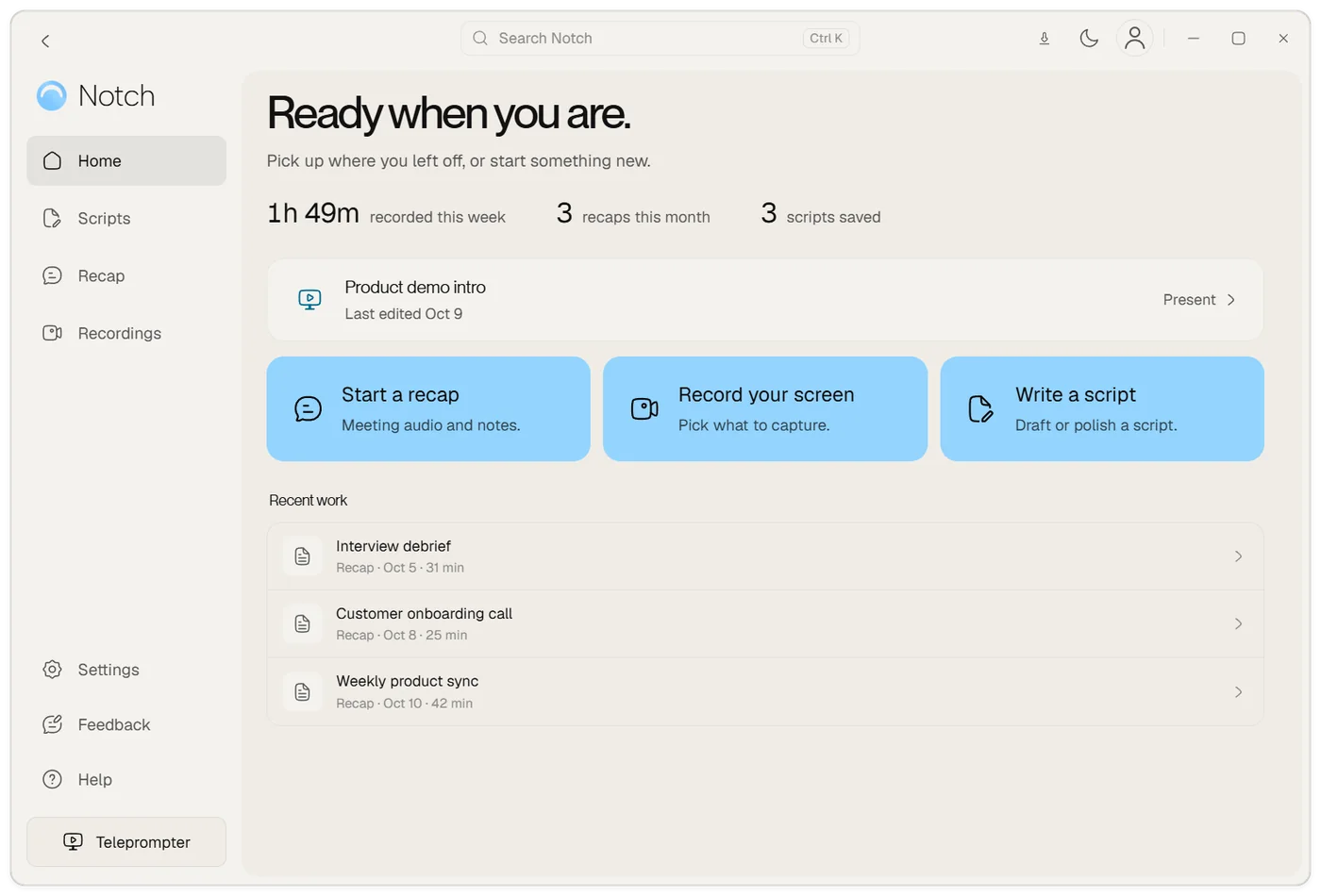
Record a Teams meeting with Notch
Download Notch for Windows or Mac and start the free 7-day trial.
Join the Teams meeting. When Notch offers to start a recap, choose Start. On Windows you can also start one from the tray.
Tell everyone in the meeting that you are recording.
Choose Stop when the meeting ends. Notch writes the transcript, summary, decisions and action items.
Record with Teams' built-in recorder
Teams records audio, video and screen sharing, and everyone in the meeting is told when recording starts.
- Start or join the meeting in Teams.
- Select More actions, then Record.
- Choose your spoken language and what to record. Pick Audio only if you don't need video.
- Select Confirm. To stop, select More actions, then Recording.
Not everyone can record. You need one of the Microsoft 365 or Office 365 licences Microsoft lists (such as E3, E5 or Business Premium), and your IT admin has to turn recording on. Guests and people from another organization can't start a recording.
Teams recordings don't capture more than four people's video at once, whiteboards, shared notes or videos embedded in PowerPoint Live.
Where Teams saves the recording
Most meeting recordings go to the organizer's OneDrive, and channel meeting recordings go to the team's SharePoint site. If you weren't the organizer, ask them for the link or check the meeting chat.
Get a transcript and recap
In Teams, you can turn on live transcription with the recording. The intelligent recap, with AI notes and suggested tasks, needs Teams Premium or a Copilot licence.
Notch writes a recap for every Teams meeting you record with it, whatever your Teams licence:
| Part | What you get |
|---|---|
| Summary | A short overview of the meeting |
| Decisions | What the group agreed |
| Action items | Tasks, with who agreed to them |
| Chapters | Key discussion points with timestamps |
| Transcript | Every word, split by speaker |
Name a speaker once and Notch recognises their voice in later recaps; voiceprints stay on your computer. Export the summary and transcript as text or PDF, save the recap to Notion or turn action items into Linear issues.
Record a Teams meeting with Notch
Notch is a Windows and Mac app that records the meeting on your computer. Nothing is added to your Teams tenant and no bot joins, so it works on a customer's Teams call as well as your own.
- Start from the tray on Windows. Begin a recap without opening Notch.
- It runs in the background. Share your screen, switch apps or pause it during a break.
- Keep your notes in view. Your talking points can sit in the Teams teleprompter while the recap runs.
When you choose Stop, Notch uploads the audio once, transcribes it and deletes the audio from your device once the transcript is saved. See the AI note taker page for the details.
Ask before you record
Tell people at the start of the meeting that you are recording, and why. Teams only shows its banner for Teams' own recordings, so when you record with Notch, saying it out loud is the notice. Check your company's recording policy too.
Frequently asked questions
Who can record a Teams meeting?
In Teams, the organizer or someone from the same organization can record if they have a supported Microsoft 365 or Office 365 licence and their IT admin has turned recording on. Guests and people from other organizations can't start a Teams recording.
Where do Teams recordings go?
Most Teams meeting recordings are saved to the organizer's OneDrive. Recordings of channel meetings go to the team's SharePoint site. Notch saves its recaps on your computer.
Can I record a Teams meeting I don't organize?
Teams lets people from the organizer's organization record, but not guests or external attendees. Notch records on your own computer, with no bot added to the meeting, so you can keep notes of a customer's Teams call. Ask everyone before you record.
How do I get a transcript of a Teams meeting?
In Teams, turn on live transcription when you start recording, if your organization allows it. Notch writes a transcript with who said what for any Teams meeting you record with it, plus a summary and action items, on Plus or Pro.
Do I need Teams Premium for meeting recaps?
Teams' intelligent recap needs Teams Premium or a Copilot licence. Notch's recaps don't depend on your Teams licence. They need a Notch Plus or Pro plan, after a free 7-day trial.
Does Notch work with Teams on Windows and Mac?
Yes. Notch records Teams meetings on 64-bit Windows 10 and 11 and on Mac, next to the Teams desktop app or Teams in a browser.