One-on-One Meeting Template: Agenda and Questions
A one-on-one meeting template is a short shared agenda for a manager and a team member: check-in, progress, blockers, growth and actions. Copy the free template below, or let Notch record the 1:1 on Mac and Windows.
Free 7-day trial, no card required · From $7.99 a month · Mac and Windows
How to use this template
Share it two days before. Put the template in a shared document so you both see the same agenda.
Let your report add topics first. Their topics go at the top, because the meeting is for them.
Write down actions, not the whole talk. Note each agreed task with one owner and a date.
Check last week's actions first. Start the next 1:1 with what you both said you would do.
The five parts of a 1:1 agenda
Use the same order every time, so both of you know what comes next. Here is a timing guide for a 30-minute one-on-one:
| Part | What you cover | Time |
|---|---|---|
| 1. Check-in | How they are, and anything on their mind. | 3 minutes |
| 2. Progress | What went well since last time, and last week's actions. | 7 minutes |
| 3. Blockers | What is slowing them down, and what you can do about it. | 10 minutes |
| 4. Growth | Feedback both ways, skills and longer-term goals. | 6 minutes |
| 5. Actions | What each of you will do, and by when. | 4 minutes |
Give the blockers the most time. That is where a manager can help most. If you run short, move growth to the next 1:1 rather than skip the actions.
One-on-one meeting template (copy and paste)
This plain-text template works in a shared document, Notion, an email or a chat message. Replace each part in round brackets.
ONE-ON-ONE MEETING
(Manager) and (team member)
Date: (date)
Length: (30 minutes)

1. Check-in
   How are things going?
   (notes)

2. Progress
   Wins since last time: (list)
   Last 1:1 actions:
   - (action) | Done / Not yet

3. Blockers
   (team member's topics first)
   - (topic)
   - (topic)
   Manager's topics:
   - (topic)

4. Growth and feedback
   Feedback for (team member): (notes)
   Feedback for (manager): (notes)
   Goal we're working on: (goal)

5. Actions
   - (Task)
     Owner: (name) | Due: (date)
   - (Task)
     Owner: (name) | Due: (date)

Next 1:1: (date and time)
Keep one running document per person and add each new 1:1 at the top. You can then scroll back through past meetings before a review.
One-on-one meeting example
Here is the template filled in for a weekly 1:1 between a support team lead and a team member. The names are made up for this example.
ONE-ON-ONE MEETING
Priya and Marco
Date: 18 November
Length: 30 minutes

1. Check-in
   Busy week after the billing email.
   Marco is tired but fine.

2. Progress
   Wins: ran his first two customer
   onboarding calls on his own.
   Last 1:1 actions:
   - Draft the refund macro | Done
   - Shadow a renewal call | Not yet

3. Blockers
   Marco's topics:
   - Password reset tickets take most
     of his day.
   - Not sure who owns billing
     questions.
   Priya's topics:
   - Holiday cover in December.

4. Growth and feedback
   Feedback for Marco: customers liked
   the onboarding recap he sent.
   Feedback for Priya: share the rota
   earlier.
   Goal: lead a customer training
   session by February.

5. Actions
   - Write a password reset article
     Owner: Marco | Due: 22 November
   - Ask finance who owns billing
     questions
     Owner: Priya | Due: 20 November
   - Book a renewal call to shadow
     Owner: Marco | Due: 29 November

Next 1:1: 25 November, 14:00
Every action has one owner and one date, and the manager has actions too. That shows your report the 1:1 works in both directions.
Questions to ask in a one-on-one
Pick two or three questions per part. A long list read out in order feels like a survey.
Check-in
- How are you, honestly, this week?
- What's taking up most of your head right now?
Progress
- What are you most pleased with since we last spoke?
- Which of last week's actions are still open, and why?
Blockers
- What's slowing you down?
- Is there a decision you're waiting on from me or someone else?
- What would you change about how the team works?
Growth and feedback
- What would you like more feedback on?
- What should I do more of, or less of, as your manager?
- Which skill do you want to build in the next three months?
Actions
- What will you do before we next meet?
- What do you need from me to get it done?
Then listen. Your report should talk for most of the meeting.
How to keep notes without typing
Typing while someone tells you about a problem makes it hard to listen. Most managers write only the actions during the 1:1 and tidy the notes straight after.
If the other person agrees, you can record the 1:1 with Notch instead. It records on your Mac or Windows computer, so no bot joins the call. It works on Zoom, Teams, Google Meet and Webex, and for a 1:1 in the same room.
- Ask your report if they are happy for you to record, and say why.
- Start a recap in Notch. On a call, Notch sees the meeting window and offers to start one. Nothing records until you choose to.
- Choose Stop when the 1:1 ends.
The recap has a summary, decisions and action items with who agreed to them, timestamped chapters and a transcript. Name your report once and Notch recognises their voice in later recaps. Voiceprints stay on your computer.
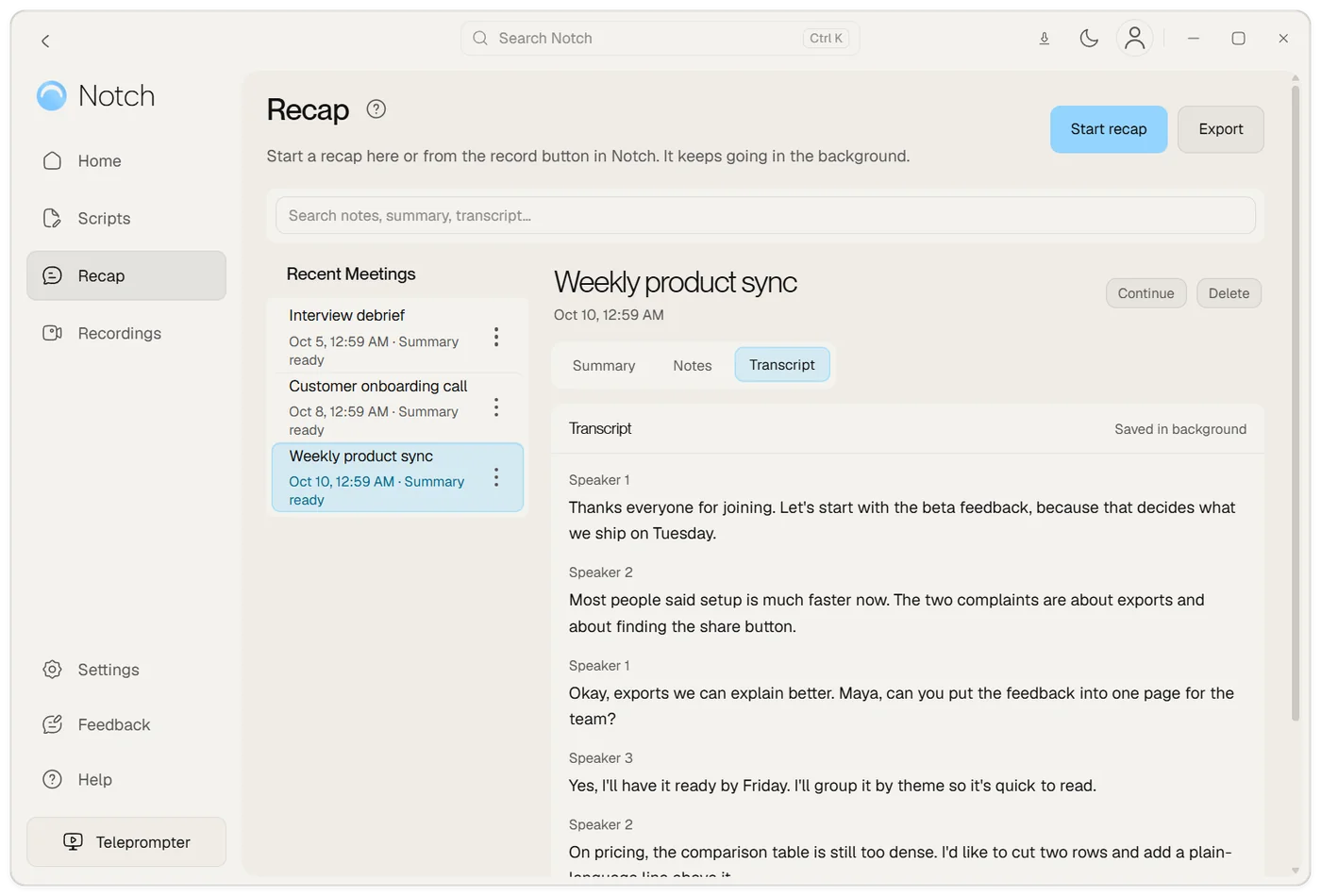
Recaps use cloud transcription and come with Plus or Pro. Try them with the free 7-day trial, no card required. With Pro, the People page keeps one page per person: when you last spoke, what you discussed and what you each agreed to do. For a step-by-step guide, see how to record a Teams meeting or the AI note taker page.
Follow up after the 1:1
- Send the actions the same day. Paste them into your shared document or a short message.
- Check the draft. Fix names and owners in a recap before you share anything from it.
- Move tasks to where work happens. Save a recap to Notion, or turn its action items into Linear issues.
- Start the next 1:1 with the old actions. It shows you both kept your word.
For team meetings rather than 1:1s, use the meeting minutes template.
Ask before you record a one-on-one
A 1:1 is often where people raise worries, health or pay. Always ask first, and accept a no. Many companies and countries require consent to record. Offer to stop the recording for any part of the talk, and keep the recap private between the two of you unless you both agree to share it.
Frequently asked questions
How long should a one-on-one meeting be?
Most managers book 30 minutes. A 15-minute check-in works for a weekly 1:1 with someone settled in their role. Plan 45 to 60 minutes for a monthly 1:1 or a career conversation.
How often should you have one-on-one meetings?
Weekly or every two weeks is common. Meet more often with new starters and people in a busy project. Move a 1:1 rather than cancel it, so your report knows the time is protected.
Who should set the agenda for a one-on-one?
Your report adds their topics first, then you add yours. A shared document the two of you can edit makes this easy and keeps every past 1:1 in one place.
What should you write down in a one-on-one?
Write down decisions, action items with one owner and a date, and any support you promised. Skip a word-for-word record. Keep private or sensitive points out of a shared document.
Can I record a one-on-one meeting?
Only if the other person agrees. Ask before you start and explain why, for example so you can listen instead of typing. Many people prefer an unrecorded 1:1, so offer to turn it off at any point.