
Meeting recaps
Capture a conversation and return to the transcript, notes and summary.
On this page
Check your audio inputs and let everyone know you are recording. Cloud transcription and summaries also need a connection and the appropriate account allowance.
Start a recap
- In Notch, click the record button and choose Meeting recap. You can also open Recap in Notch and choose Start recap.
- Let everyone in the meeting know you are recording.
- Choose Stop when the meeting is finished. Allow transcription and processing to complete.
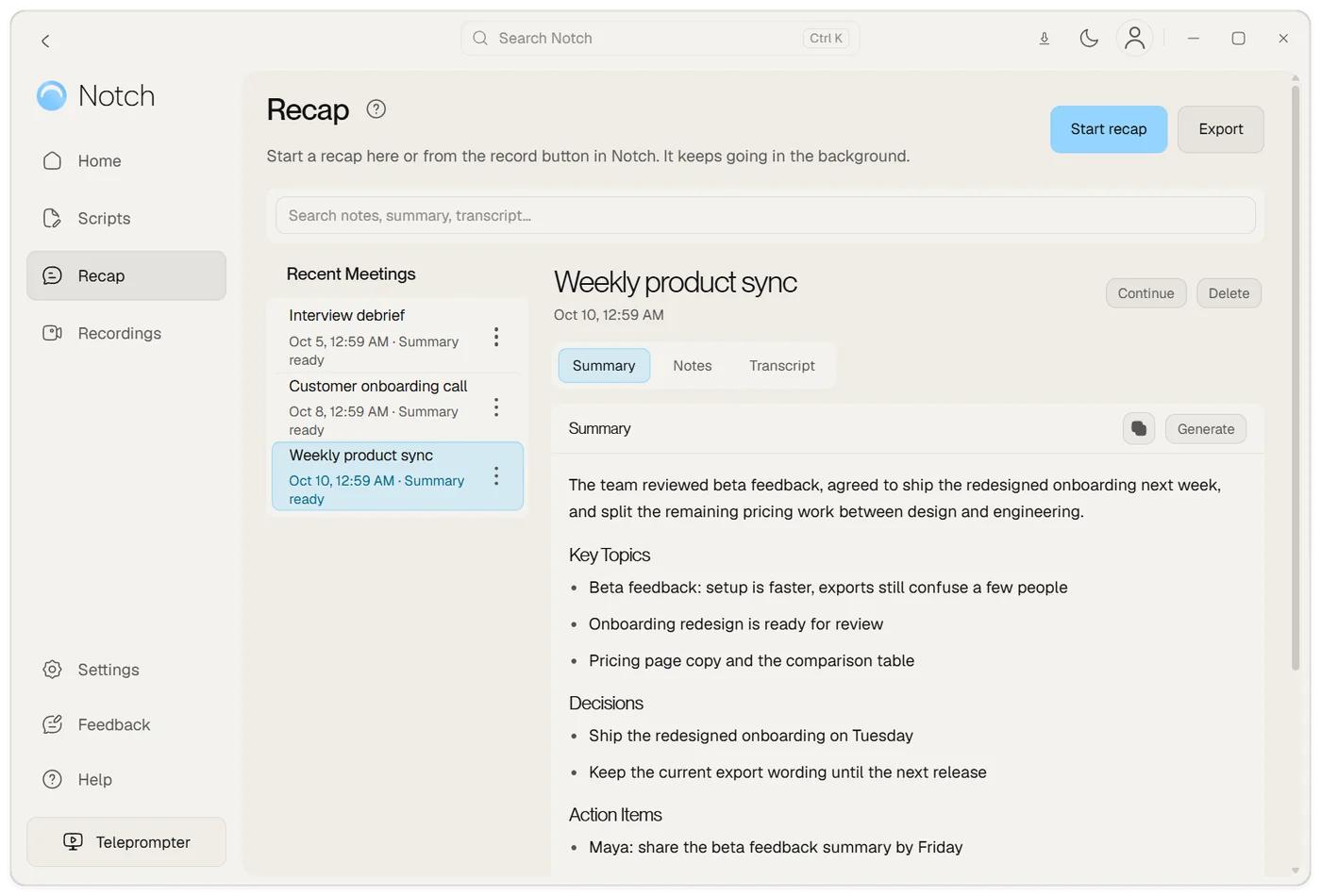
When Notch detects a supported meeting, it can offer to start a recap. Detection alone does not start a recording.
Keep it running
A recap runs in the background. The timer, Pause and Stop controls sit at the top of Notch, so you can switch tabs, change apps or close Recap and the recording carries on.
- If your teleprompter is empty, Notch shrinks to a thin pill that shows only the timer and its controls, then returns to its size when the recap is saved.
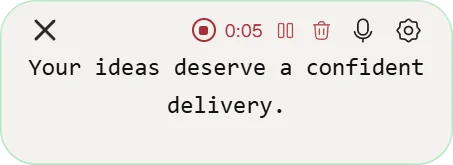
- If you close Notch while a recap is running, it stays as that thin pill, and closes by itself once your recap is saved.
- Quitting Notch ends the recording.
Pause and continue
Choose Pause in Notch to stop recording for a moment, for example during a break. Nothing said while paused is recorded or transcribed, and the paused time is not counted in the timer. Choose Resume to carry on in the same recap.
You can also carry on a recap you already finished. Open it in Recap and choose Continue, or open its menu in the list and choose Continue recap. The new part is added after what is already there, and the timer carries on from the earlier total. Generate the summary again afterwards to include the new part.
- Continuing is available on Plus and Pro. It is not available for a recording that includes video.
- If the last recording is still waiting to be transcribed, transcribe it first. Open the recap and choose Transcribe recording.
- Speaker numbers start again for each part, so Speaker 1 in a later part may be a different person from Speaker 1 earlier on.
Review and use the result
Open the saved meeting to move between Summary, Notes and Transcript. Add your own notes and review names, decisions and action items before sharing generated output.
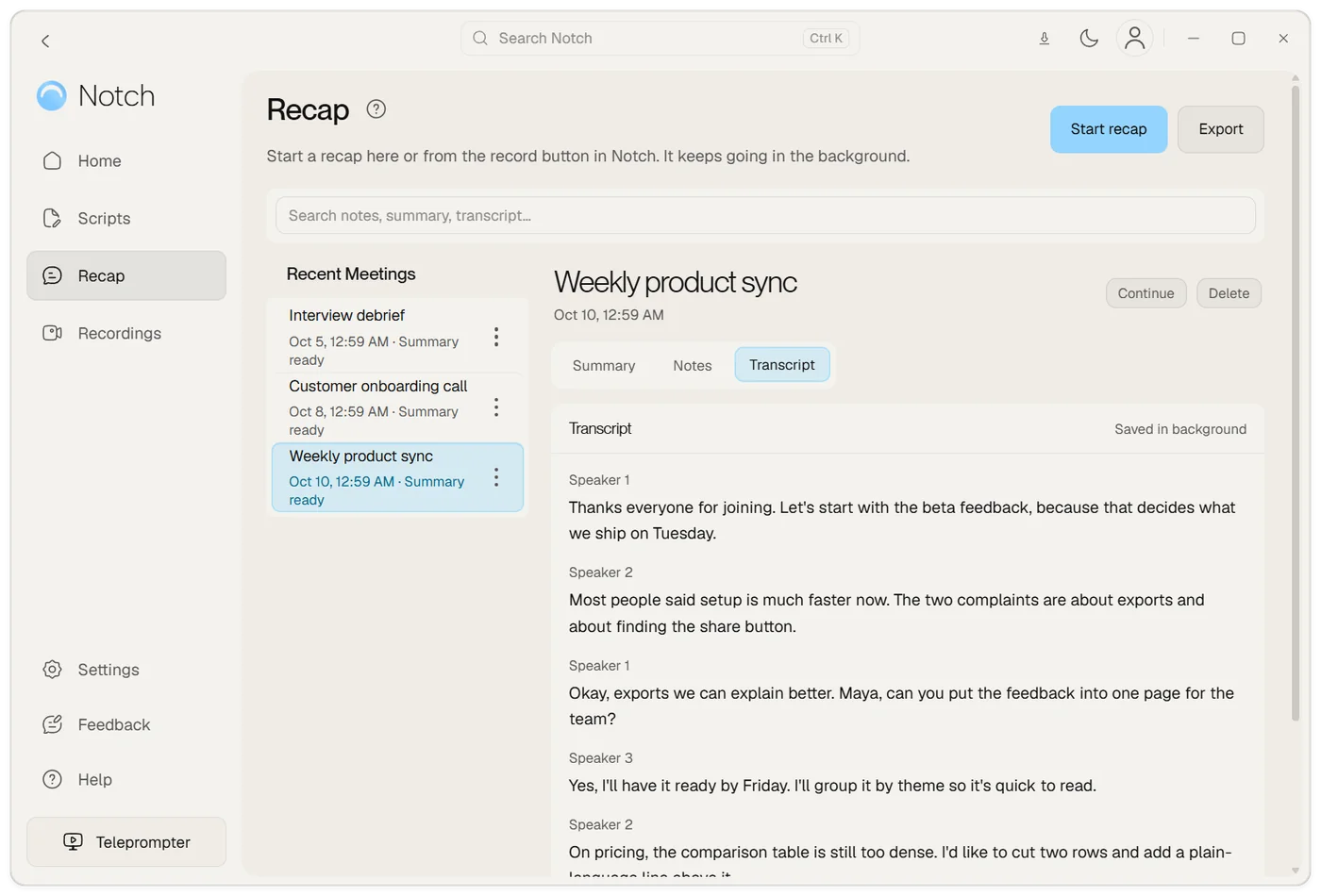
The transcript labels each speaker as Speaker 1, Speaker 2 and so on, so you can follow who said what.
Use the summary copy action to copy the summary. Export saves the meeting as Markdown, which you can open in a text editor or another notes app.
Understand the processing
When you stop, Notch uploads the whole recording once and transcribes it in the cloud. Hearing everyone together is what lets it tell speakers apart, so each person's words are labelled as a separate speaker. This uses your plan's cloud minutes. AI recap generation sends the transcript and relevant notes for summarization. These steps need an internet connection and the appropriate account allowance.
The audio is deleted from your device once the transcript is saved.
Cloud transcription and AI credits are separate allowances. Generating or regenerating a recap uses AI credits; repeating a cloud action is not the same as reopening a saved result.
If your recap is empty or fails
No transcript appears
Check that the intended microphone and any required system audio were captured. A silent recording cannot produce a useful transcript.
Processing failed
Your recording is kept on your device. Check your connection, sign-in and remaining cloud minutes, then open the recap and choose Transcribe recording.
The recap stopped when I changed tabs or closed Notch
Recaps now run in the background and keep going when you switch tabs, close Recap or close Notch. If one still stopped, quitting Notch, a microphone that was unplugged or a computer that went to sleep can end it. Anything recorded before that is kept.
The summary is empty
Review the Transcript and Notes tabs for usable content before generating again.
Some voices are missing
Make a short test capture using the same meeting app and audio devices before the next session.