Your first session
Set up Notch, add a script and find your speaking pace.
On this page
Allow about five minutes. Have a few sentences ready to read, and if you want to try Voice mode, connect a microphone.
Meet Notch
Notch opens on Home. The sidebar takes you everywhere else.
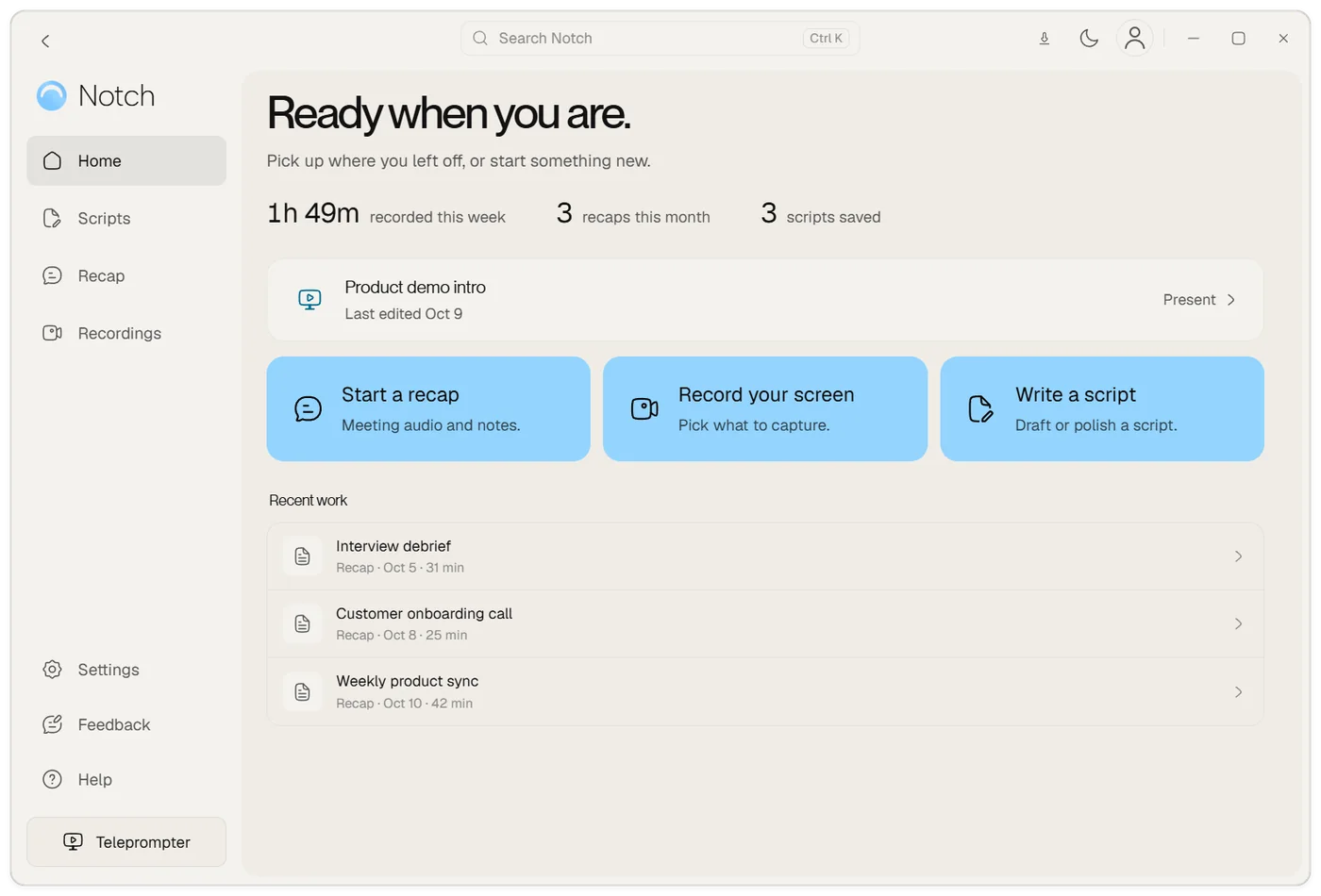
Once you have used Notch, Home shows a few numbers about your week and a shortcut back to the script you were last working on. Choose Present beside it to send that script to the teleprompter. The three cards start the most common jobs: Start a recap, Record your screen and Write a script. Below them, Recent work lists your latest recaps and recordings.
| Where | What you do there |
|---|---|
| Home | Pick up where you left off, or start a recap, a recording or a script. |
| Scripts | Keep a library of scripts, polish rough notes into a spoken script, or send one straight to the teleprompter. |
| Recap | Start a meeting recap, and review the summary, notes and transcript of earlier ones. |
| Recordings | Find, play and edit your screen recordings. |
| Settings | Language, appearance, recording quality, microphone and updates. |
| Teleprompter (bottom left) | Opens the floating script, always one click away. |
Press Ctrl+K (Cmd+K on Mac) to search Notch and run actions from anywhere.
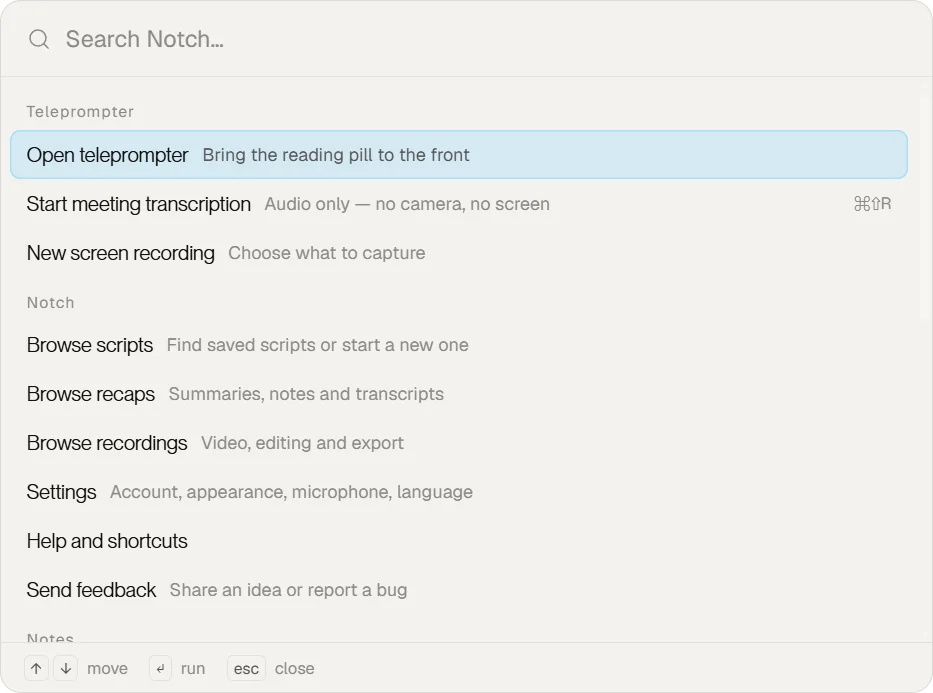
The command palette finds recaps and recordings by name, jumps to any part of Notch, and starts the common jobs: opening the teleprompter, starting a meeting recap or a new screen recording, and sending feedback.
1. Make yourself at home
Install Notch for your computer and open it. Follow the welcome steps to choose your language and try the practice script. If your language needs a voice model, let the download finish before you continue.
2. Add something to say
The teleprompter is a small floating window that stays on top of your other apps.
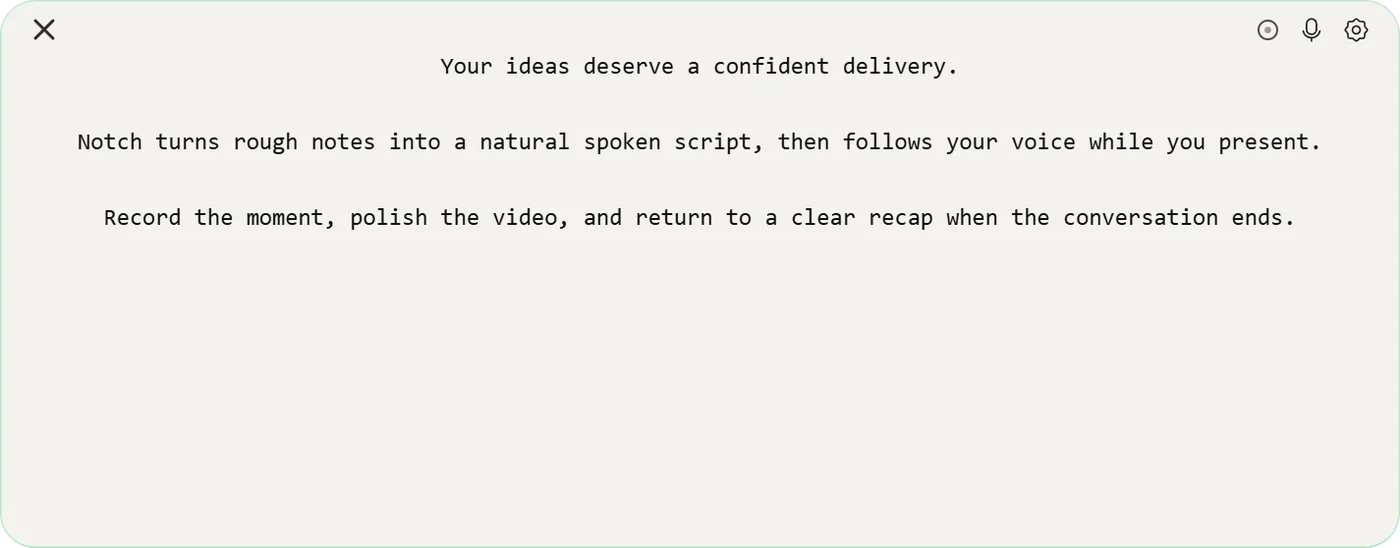
- Choose the Teleprompter button at the bottom of the sidebar, or Present beside your latest script on Home.
- Double-click the teleprompter to edit it.
- Paste your script, or import a .txt, .pdf or .docx file.
- Keep the first try short. Three or four sentences are enough to check your setup.
Not sure what to say? Open Scripts, paste your notes and choose Open in teleprompter, or choose Generate to get a polished script first. Generating uses cloud AI, so it needs an internet connection. Writing a script
3. Find your pace
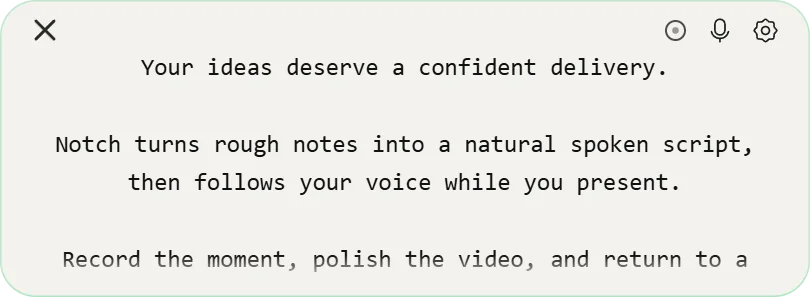
Choose how the script moves:
- Voice follows you as you speak. Allow microphone access, then read the words on screen. The voice model must match the language you speak.
- Manual lets you control the pace. With the teleprompter focused and outside edit mode, press Space to play or pause, and the left or right arrow key to slow down or speed up.
Voice follows words, not meaning. Pauses, slide numbers and respelled words can hold it back, so mark what you do not say and Notch will skip them.
Make it yours
Open Settings to tune how Notch looks and behaves.
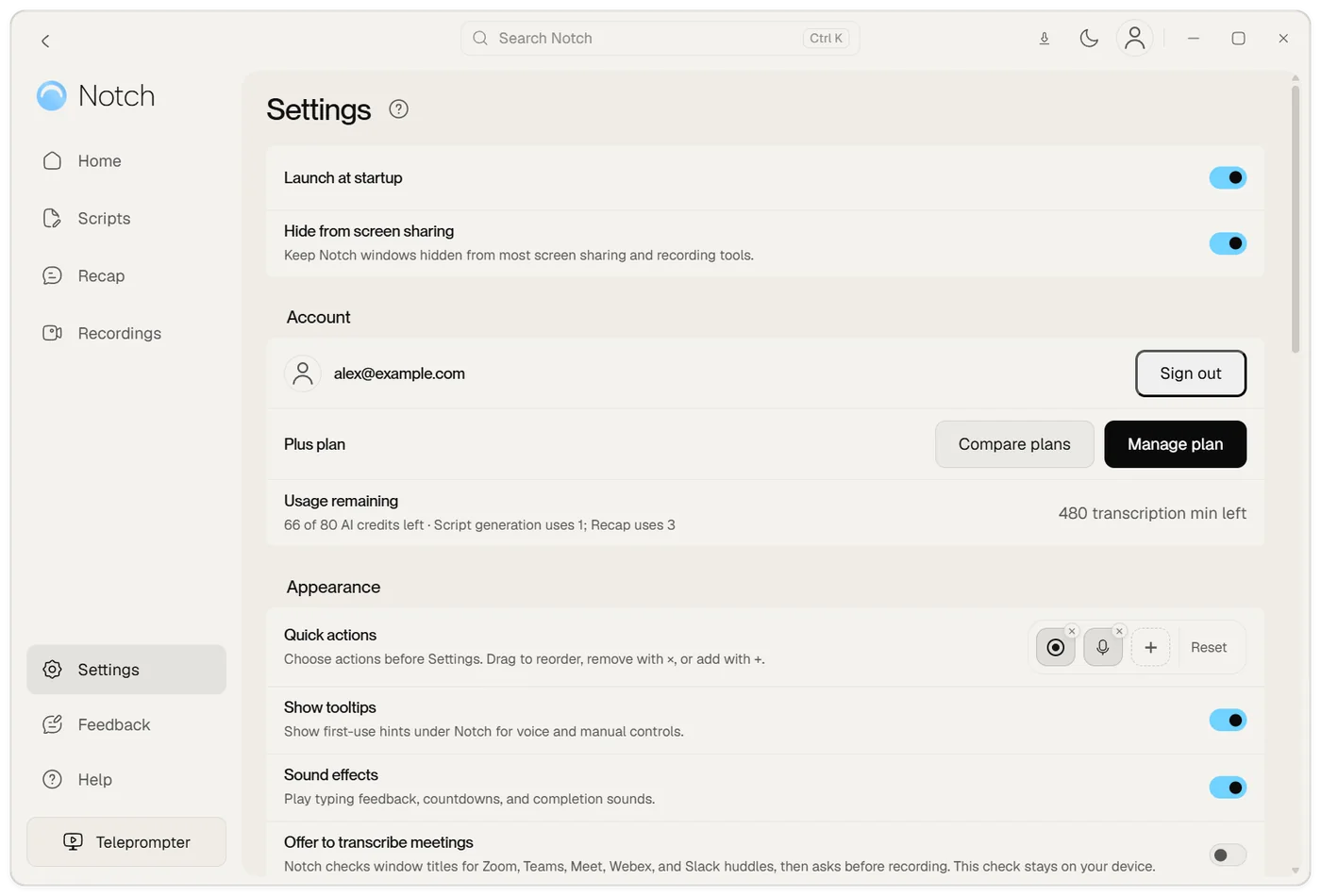
- Quick actions choose which buttons appear on the teleprompter. Drag to reorder, remove with × or add with +.
- Theme, Font size, Font and Opacity change the reading experience. A lower opacity lets you see the window behind the script.
- Voice model language and the Download more languages list control Voice mode. Voice models
- Offer to transcribe meetings asks before it records when Zoom, Teams, Meet, Webex or a Slack huddle starts. The check stays on your device. Meeting recaps
Ready for the next step?
Rehearse a short passage before your presentation. If you plan to share your screen, make a test capture with the same app and sharing mode you will use, because capture protection depends on the operating system and the sharing method.