
Install & update Notch
Choose your installer, open Notch and keep it up to date.
On this page
Choose the installer for your operating system and computer architecture. The download pages help you find the right one.
Before you start
- Choose the download for your operating system. Notch’s download pages suggest the right one.
- Leave some free disk space: the installer, plus 31 to 47 MB for each extra voice language you add.
- Close other copies of Notch before you update or reinstall.
Install on Windows
- Open the Windows download page and get the installer from the official release.
- Open the downloaded .exe file and follow the setup prompts.
- Launch Notch and complete the welcome steps: choose your language and try the practice script.
- Windows may ask you to allow microphone access the first time you use Voice mode or recording. Check permissions.
Install on Mac
- Open Apple menu → About This Mac. A Chip entry identifies Apple Silicon; a Processor entry with Intel identifies an Intel Mac.
- Choose the matching download, open the .dmg and drag Notch into Applications.
- Open Notch from Applications and grant the permissions needed for the features you use. macOS asks for each one the first time. Check permissions.
Check for an update
In Notch, open Settings, scroll to Updates and choose Check for updates. Notch tells you if a newer version is available.
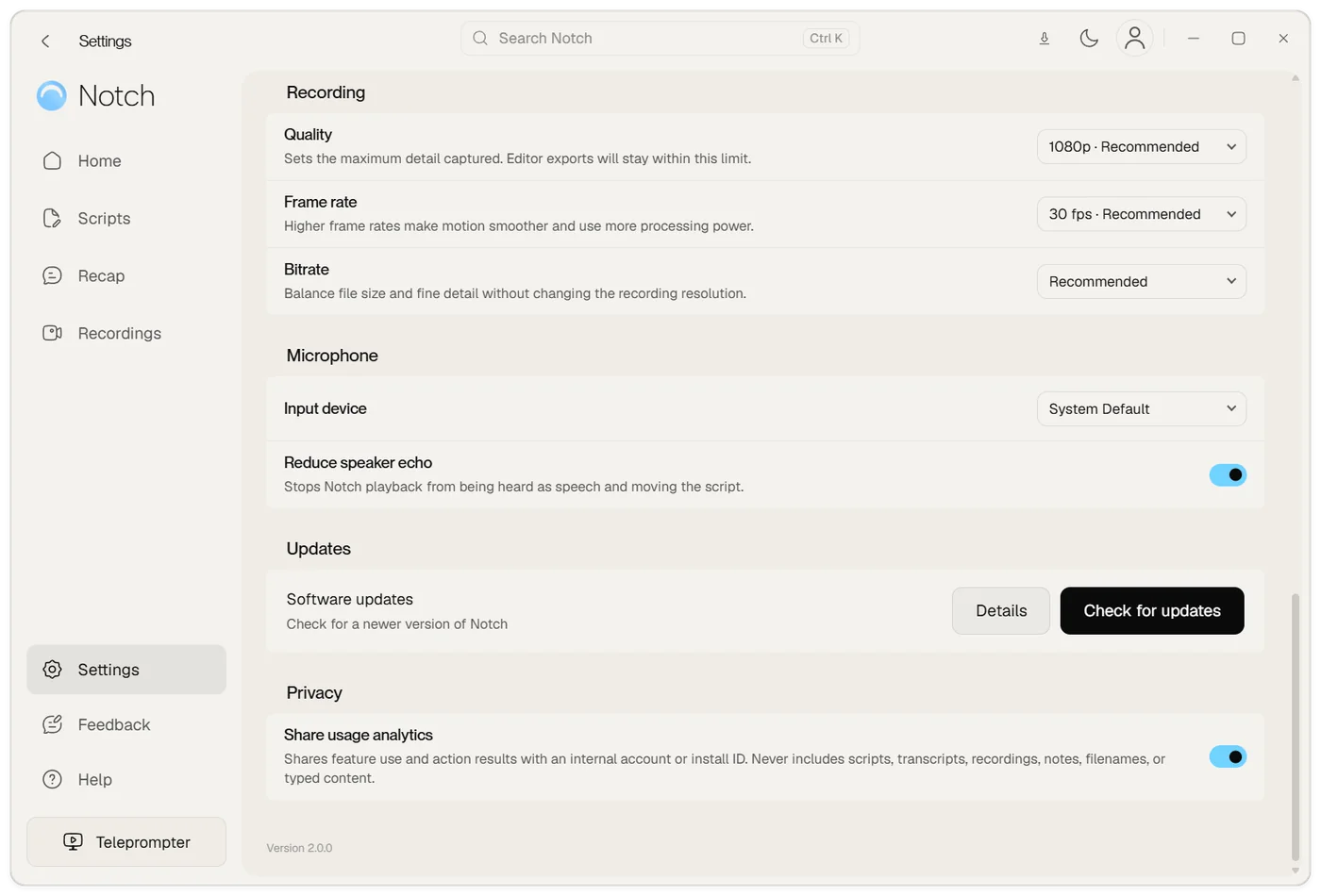
Finish any active recording or export before restarting to install an update.
Your scripts, recordings and settings stay on your computer when you update.
For operating-system requirements and changes in a particular version, check the notes attached to the installer’s official release. Avoid relying on requirements from an older tutorial.
If Notch does not open
- Check that you chose the installer for your computer’s architecture.
- If the download is incomplete, download it again from the official download page.
- If your computer shows a security or organization-policy warning, record the exact wording and contact support or your IT administrator.