
Write a script
Keep your scripts in one place, import a document or get a first draft from your notes.
On this page
Start with a few notes about what you want to say. You can write everything yourself or let Notch help shape a first draft. Everything you save lives in Scripts, in the sidebar.
Your script library
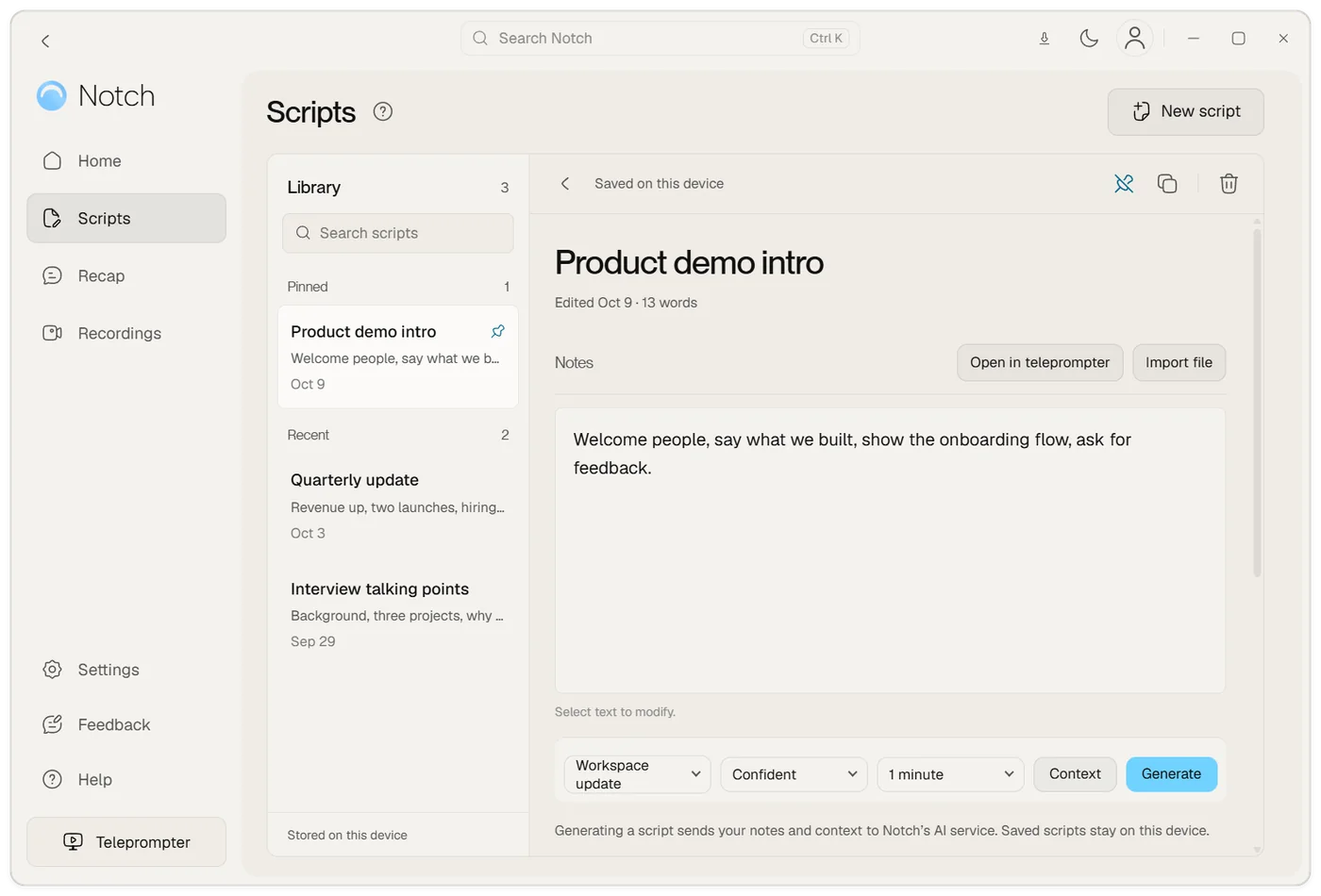
The library on the left holds every script you have saved, with your Pinned scripts first and the rest under Recent. Search by name, and choose New script to start another. Your notes and scripts are saved on your computer as you type, and the page tells you when they are saved.
- Pin a script to keep it at the top of the library.
- Paste your notes into the large box, or choose Import file to bring in a document.
- Choose Open in teleprompter to send what you have to the floating teleprompter right away.
Select text in the box to choose a colour or make it bold, italic or underlined. Those marks carry over to the teleprompter.
Start with your own words
- Open the teleprompter and double-click it to edit, or write in Scripts and choose Open in teleprompter.
- Paste or type your script. Start with a short paragraph while you find your pace.
- Leave edit mode and choose Voice or Manual scrolling.
Use short sentences and words that feel natural to say aloud. A practice read helps you spot anything that sounds too formal or takes too long to get through.
Mark what you don’t say
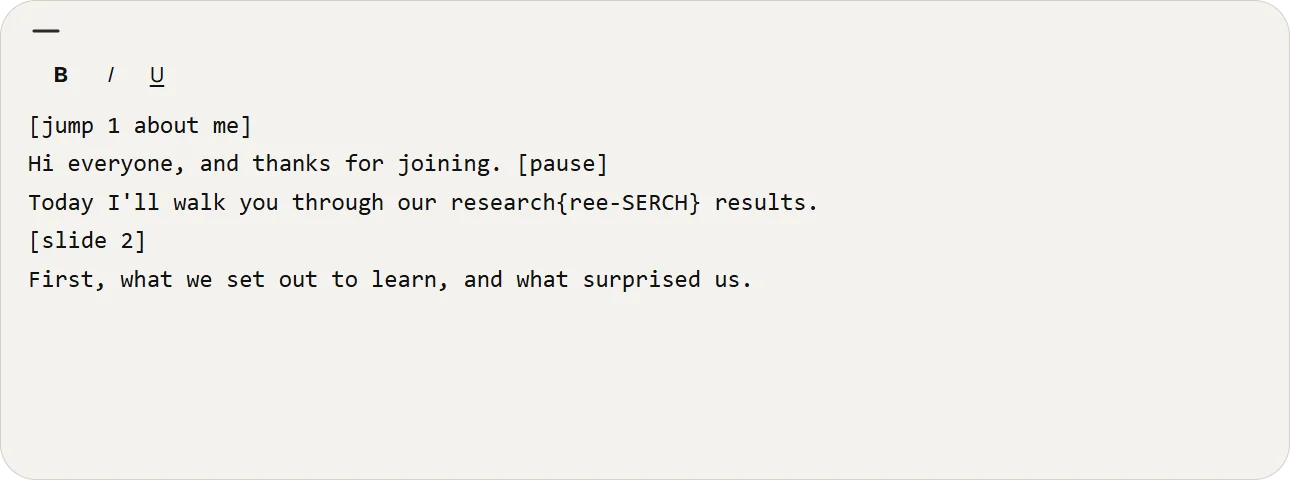
Voice following listens for the words in your script. Anything you type that you won’t actually say can confuse it: a pause marker, a slide number or a respelled word. Mark these so Notch shows them to you but never waits for them.
| You type | What you see | What Notch listens for |
|---|---|---|
[pause] |
[pause], dimmed |
Nothing. It is a cue for you. |
[slide 3] |
[slide 3], dimmed |
Nothing. The slide change is yours to make. |
ree-SERCH{research} |
ree-SERCH |
research |
[jump 1 about me] |
[jump 1 about me], dimmed |
Nothing. It marks a section you can jump to. |
- Cues: put anything you don’t say aloud in square brackets, such as
[pause],[slow down],[slide 4]or[look at the camera]. Curly braces on their own, such as{pause}, work the same way. A cue stays on one line and can be up to 120 characters. - Pronunciation hints: type the spelling that helps you say a word, then put the real word in curly braces straight after it, with no space:
ree-SERCH{research}. The teleprompter shows what you typed before the braces. Voice following listens for the word inside them. A hint is a single word. - Section shortcuts: see Jump to a section below.
- Pauses and slide numbers: punctuation on its own (
...,—,/) is skipped automatically. A bare number such as3is not, because you might really say it. Write[3]or[slide 3]for a slide change. - Emphasis: capital letters don’t affect voice following, so capitalising a word to stress it is fine. Spelling a word differently to change how it sounds is what needs a hint.
While you edit, you always see exactly what you typed. Cues and hints are read on your device.
Jump to a section
Put [jump 1] to [jump 9] at the start of any part of your script you may want to reach quickly, such as the part about yourself in an interview, your pricing, or a fallback answer. You can add a few words after the number to remind yourself what it is, for example [jump 2 about me].
| On Windows | On Mac | What it does |
|---|---|---|
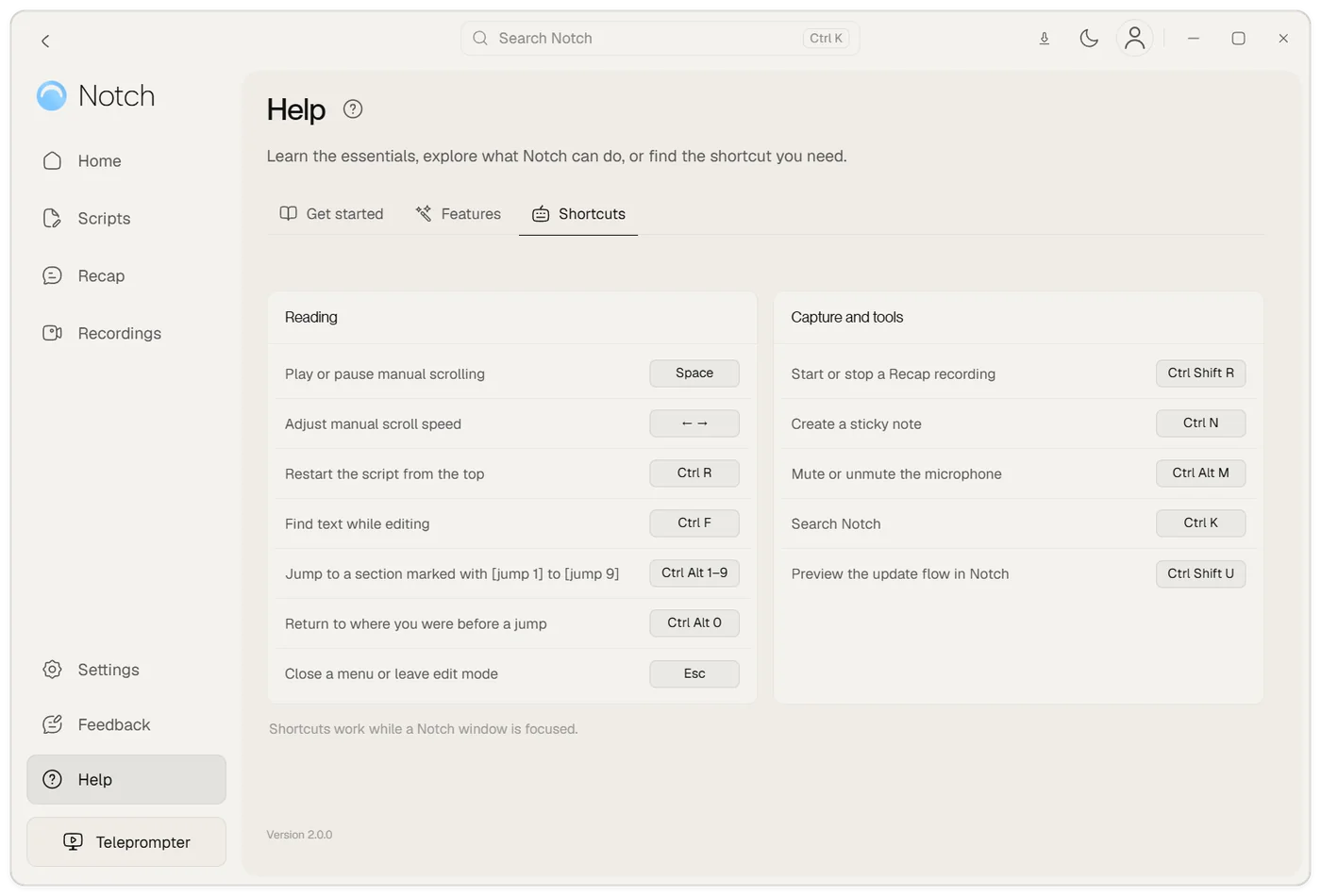
Ctrl + Alt + 1 to 9 |
Cmd + Option + 1 to 9 |
Moves the teleprompter to that section. |
Ctrl + Alt + 0 |
Cmd + Option + 0 |
Returns to where you were. Press it again to go back to the section. |
- The shortcuts work while another app, such as a call or a slide deck, has focus. Notch only claims the numbers your script uses, so the others stay free for your other apps.
- The shortcut list is also in Help → Shortcuts, together with the keys for pausing, scrolling and starting a recap.
- Voice following carries on from the section you jumped to. If you jump while talking, give it a moment to hear your next words.
- The numbers belong to the script and save with it. Copying or exporting the script keeps the markers, and changing a marker changes the shortcut.
- The shortcuts are off while you edit the script, because on some keyboards (for example German, Spanish and French layouts)
Alt+ a number types a bracket. They turn on again when you leave edit mode. - If a number is used twice, the first marker wins. Numbers must be 1 to 9.
Bring in a document
You can import a text file, a text-based PDF or a Word document. Notch supports .txt, .pdf and .docx files.
If an imported document is empty, check whether you can select its text in another app. Image-only documents and scanned pages are not supported; paste the text instead.
Get a draft from your notes
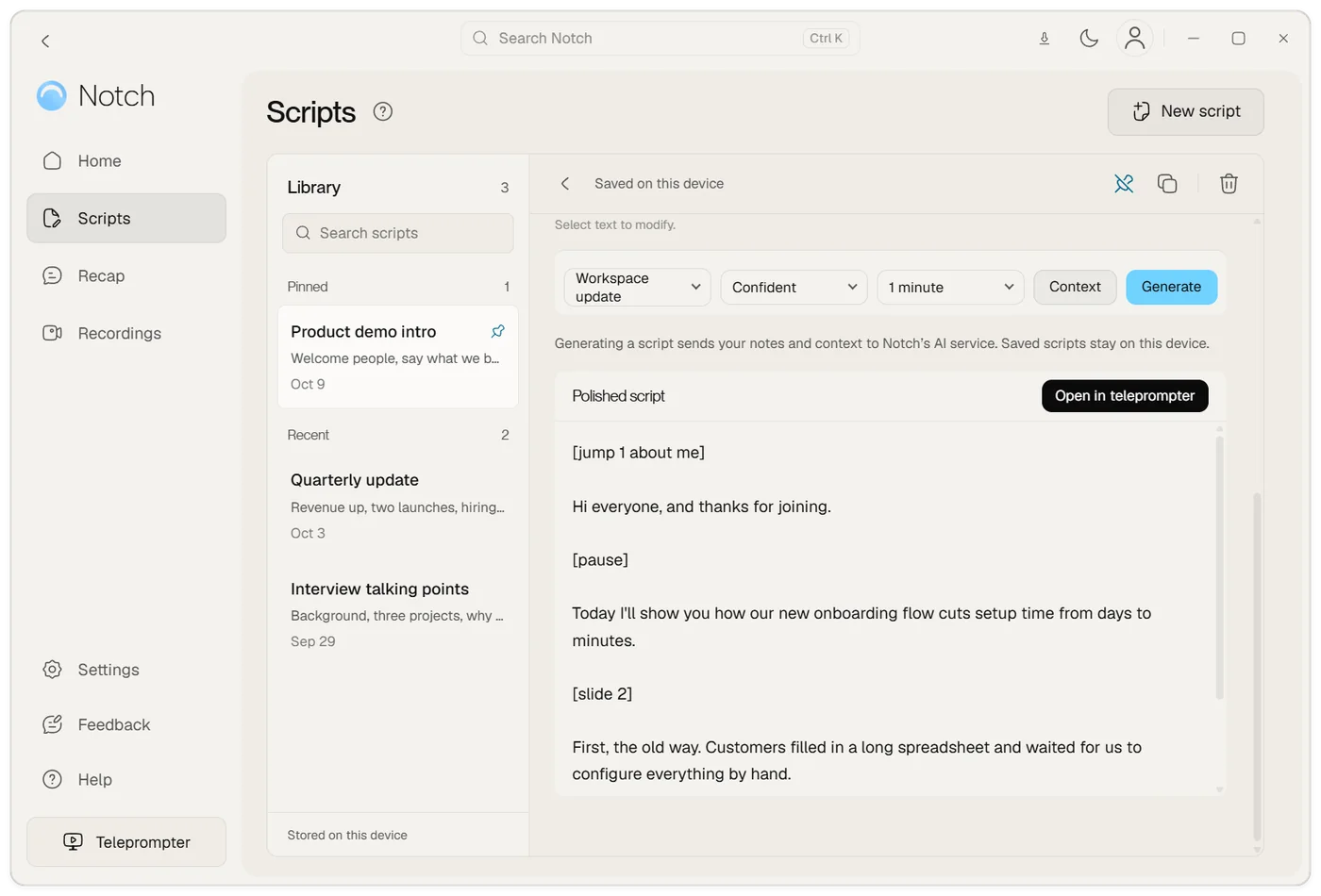
Open a script in Scripts and paste the notes or source material you want to work from. Choose what the script is for under Purpose (for example Job interview, Sales pitch or Conference talk), a Tone and a Length from 30 seconds to 5 minutes. Add anything extra the script should know under Context, then choose Generate.
The result appears under Polished script. Read it through, edit it so it sounds like you, and choose Open in teleprompter when you are happy with it. Your notes stay as they were, so you can generate again with a different tone or length.
Generating needs an internet connection and uses your account’s AI allowance. Your notes and context are sent to Notch’s AI service to write the script, and the page says so before you generate. Saving and browsing scripts never uploads them. Learn about your content and privacy.
Always check names, numbers and other factual details before recording.
If the script stops following you
The script stalls on a pause, slide number or respelled word
Voice following waits for the words you wrote. Put pauses and slide changes in square brackets, such as [pause] or [slide 3]. For a word you spelled differently to help your pronunciation, add the real word after it in curly braces: ree-SERCH{research}. See Mark what you don’t say.
A jump shortcut does nothing
Check that the marker is written as [jump 1] with a number from 1 to 9, and that you have left edit mode. Another app may already be using that key combination; if so, use a different number in your script. See Jump to a section.
It follows me, but lags behind
Check that the selected voice model matches the language you are speaking, and that the right microphone is selected. Fix a microphone or permission problem.