Voice models & languages
Choose the local speech model that matches your script.
On this page
Choose a model for the language you will speak. You need an internet connection to download a model that is not installed yet.
What a voice model does
A voice model lets Notch follow your spoken words locally while you read. It is separate from the cloud processing used for AI writing and meeting recaps.
The current language choices are English, German, Spanish, French, Italian and Portuguese. English is included with Notch; the others are small downloads you can add in the app.
| Language | Size | Included? |
|---|---|---|
| English | 41 MB | Yes, with the app |
| German | 47 MB | Download in Settings |
| Spanish | 38 MB | Download in Settings |
| French | 40 MB | Download in Settings |
| Italian | 47 MB | Download in Settings |
| Portuguese | 31 MB | Download in Settings |
Download and select a model
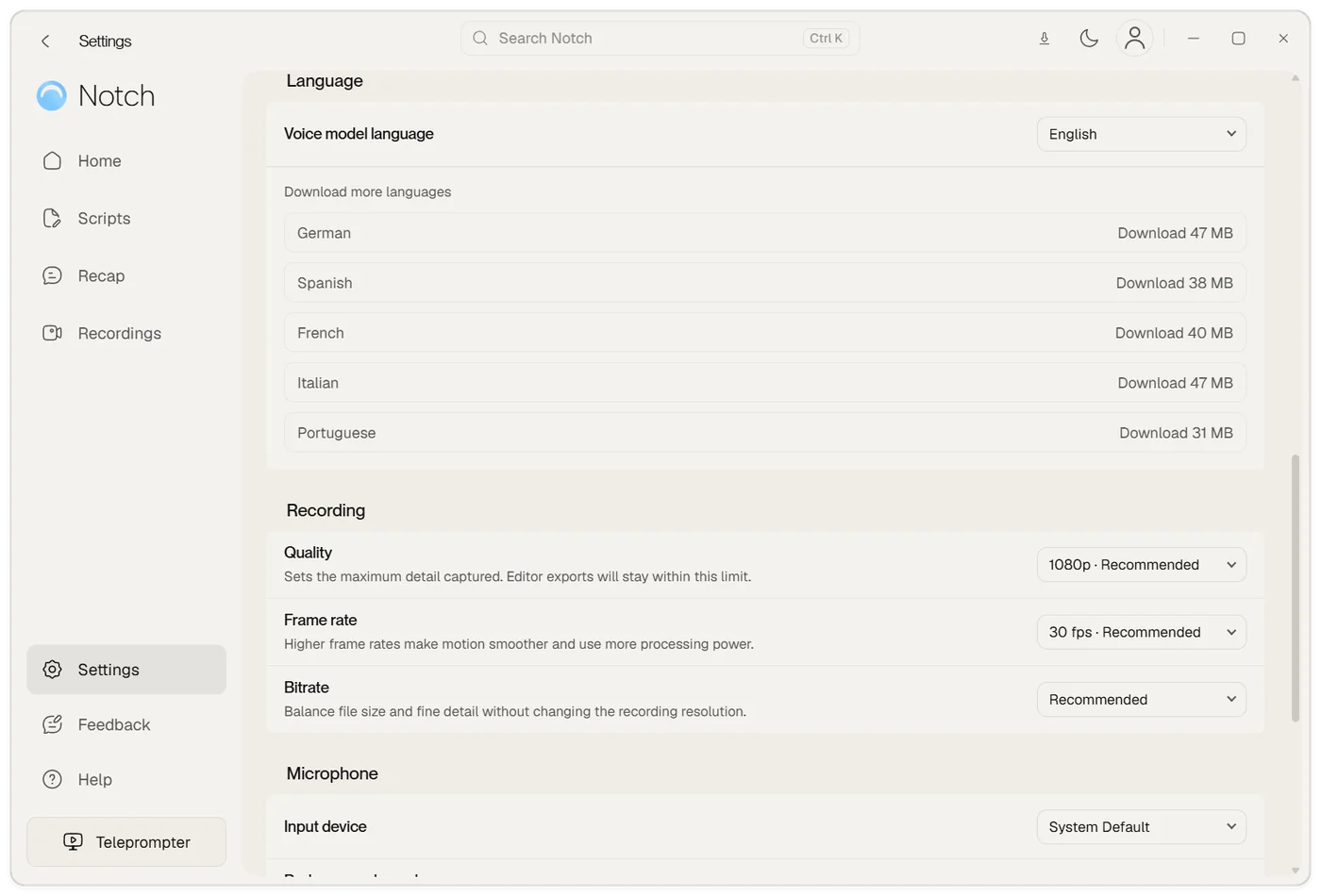
- Open Settings → Language.
- Under Download more languages, choose Download next to the language you need and wait for it to finish.
- Select it in Voice model language.
- Return to the teleprompter, choose Voice and read a short passage in that language.
Tips for better following
- Read at a natural pace and speak the words on screen. Voice follows the words you say, so it can keep up if you skip a little or pause.
- Use a headset or turn on Settings → Microphone → Reduce speaker echo so your computer’s own sound is not mistaken for you.
- Mark cues you do not say, such as slide numbers or stage directions.
- Match the model to the language you speak. A script in one language read aloud with another language’s model will not follow.
What works offline?
Once the model is installed, voice following processes speech on your device. Downloading a model, signing in and using cloud AI or transcription require a connection.
Account access is a separate check: paid local features have a limited offline grace period after verification, and trials need verification. Local voice processing does not mean every Notch feature is available indefinitely offline.
If the download or following gets stuck
- Keep your connection active while downloading and check that your disk has space.
- If a download fails, retry from Settings and select the model after it is installed.
- Check that your microphone is active and that the spoken language matches the selected model.
- Try a short, plain-text passage first. Manual mode remains an alternative when you want to control the pace yourself.