Permissions & microphones
Connect the right input and give Notch access to what you want to capture.
On this page
Connect the microphone or headset you want to use. Your teleprompter input and recording inputs are worth checking separately.
Which permissions do I need?
Only enable the inputs you need for your session. System-audio availability varies by platform; recording setup explains when it is unavailable.
- Microphone: voice following, your spoken audio in a recording, and microphone audio in a recap.
- Camera: recordings that include your webcam.
- Screen recording: capturing a screen, window or selected area on Mac.
What the messages mean
| You see | What to do |
|---|---|
| Microphone permission was denied. | Allow Notch in your system’s microphone privacy settings, then reopen Notch. |
| No microphone found. | Connect a microphone or headset, then reopen the list. |
| Microphone is unavailable. | Another app may be using it. Close that app, or choose a different input. |
| No camera found. | Connect a camera and close apps that are using it. |
| Unavailable on Record system audio | Your computer cannot capture it. On Mac this needs macOS 14.2 or later. |
Choose your microphone
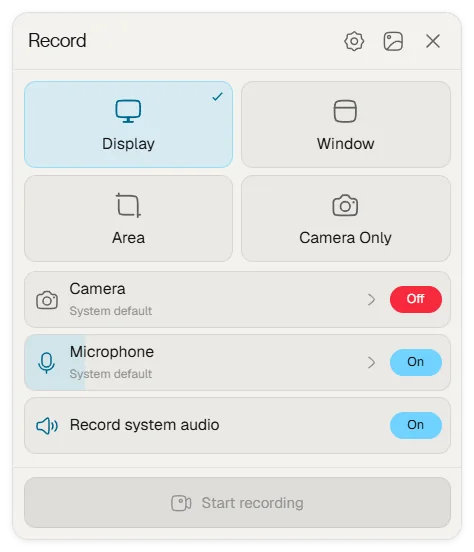
- Connect your microphone or headset before opening the input list.
- In Notch, go to Settings → Microphone → Input device and choose the device you want.
- For the teleprompter, you can also right-click the microphone control to change the input.
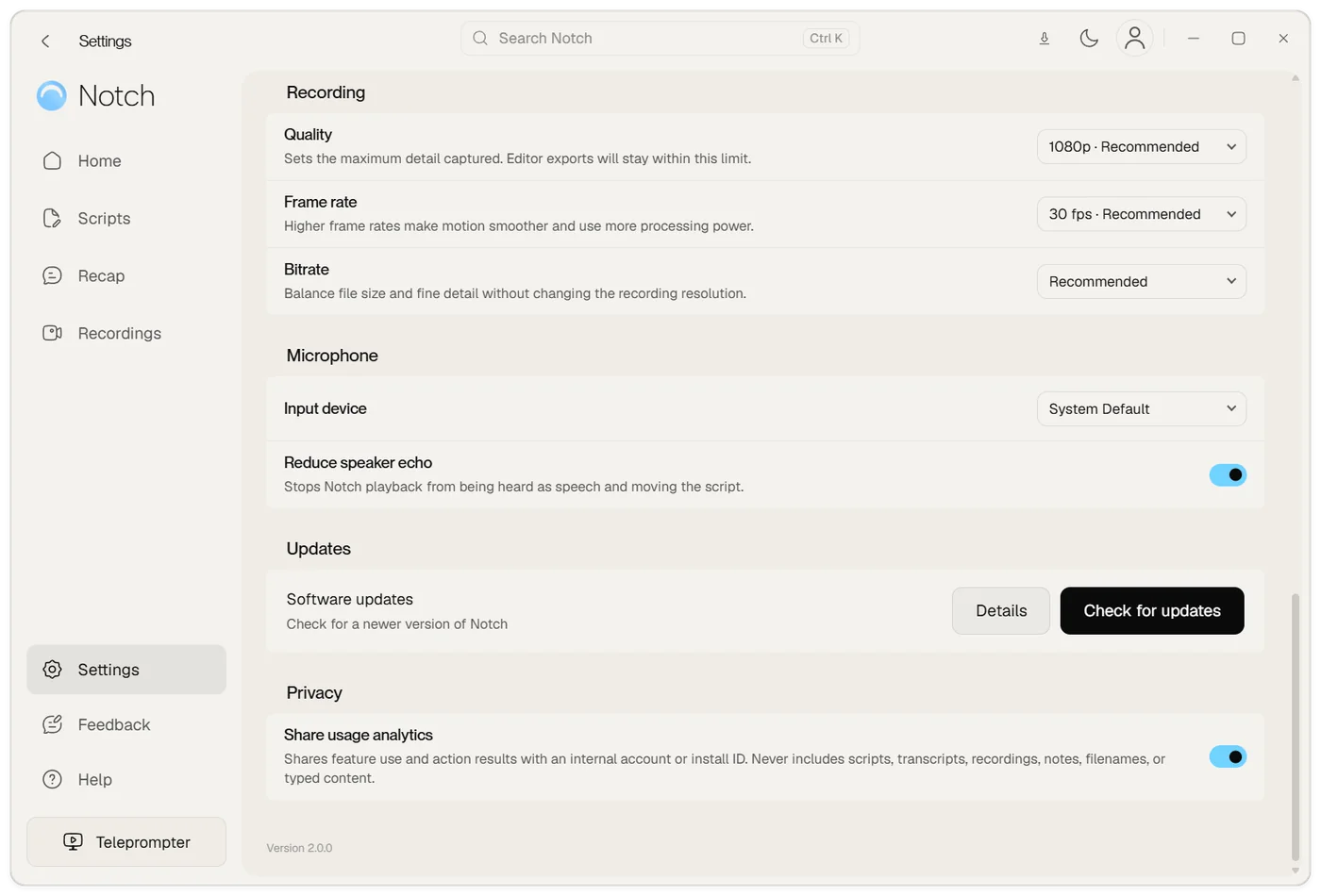 4. For a screen recording, check the microphone selection and input level in recording setup before starting.
Check access on Mac
Open System Settings → Privacy & Security. Check Notch’s access under Microphone, Camera and the screen-recording permission category for your macOS version.
If macOS asks you to quit and reopen Notch after a permission change, finish any active work and reopen the app. Then choose your capture source again.
Check access on Windows
Open Windows Settings and find the microphone privacy settings. Allow microphone access and access for desktop apps. Check camera privacy settings too if you are recording your webcam.
An organization-managed computer may restrict these settings. Contact your administrator if the controls are unavailable.
If your voice is not being picked up
- Check the microphone’s physical mute switch and the input selected in Notch.
- Try the microphone in your computer’s sound settings. If it does not register there, check the device or connection first.
- Reopen Notch after changing system permissions. Reconnect a USB or Bluetooth device if it disappeared.
- For voice following, confirm that Voice mode is selected and the installed model matches your script’s language.
If playback is moving your script, try headphones and Settings → Microphone → Reduce speaker echo.