How to Take Notes in a Meeting: Template and Example
To take notes in a meeting, write down decisions, action items and open questions under each agenda item, not every word. Use a template, or record the call and let Notch write the recap on Mac and Windows.
Free 7-day trial, no card required · From $7.99 a month · Mac and Windows
How to take notes in a meeting
Set up the page before you join. Write the meeting purpose and one heading per agenda item.
Note what changes. Under each heading, mark decisions, actions and open questions with a letter.
Read the actions back at the end. Check each task has one owner and a date before people leave.
Tidy and send within a day. Fix names, cut what nobody needs and share the notes with everyone invited.
Three ways to take notes in a meeting
Pick the way that fits how much you need to talk. The person running the meeting has the least time to write.
| Way | How it works | Best when |
|---|---|---|
| Write as you go | Short keywords by hand or in a document, under agenda headings. | You mostly listen, and the meeting is small. |
| Fill in a template | A page with the agenda, decisions, actions and questions set up before the call. | Regular meetings, such as a weekly update or a 1:1. |
| Record and get a recap | Record the call, then check and share the summary and action items. | You lead the call, or details matter later. |
You can mix them. Many people keep a short template open and record the call as a backup for exact numbers and names.
What to write down (and what to skip)
Good notes answer one question for someone who wasn't there: what was decided, and who does what next? Capture these:
- Decisions. What the group agreed, in one line each.
- Action items. The task, one owner and a due date.
- Numbers and dates. Prices, deadlines, targets and anything people will quote later.
- Open questions. What is still unclear, and who will find out.
- Exact words, sometimes. A customer's own words for their problem are worth copying down.
Skip the back-and-forth, jokes and status updates that change nothing. If people need the full discussion, share a recording or transcript instead.
What to listen for in your kind of meeting
The same method works everywhere, but each meeting has a few things you must not miss.
| Meeting | Write down |
|---|---|
| Sales discovery call | The buyer's problem in their words, who else decides, budget, timeline and the agreed next step. |
| Customer onboarding call | Their goals, setup questions, who owns setup on their side, and when you meet again. |
| Client call (consulting) | Scope changes, what the client approved, deadlines and anything you promised to send. |
| Team update | Decisions, blockers, who is helping with each blocker, and changed dates. |
| One-on-one | Agreed actions for both of you and any support you offered. Keep private points out of shared notes. |
For sales calls, a discovery call script gives you the questions to ask, so your notes follow the same order every time.
Before the meeting: set up the page
A prepared page means you only fill in gaps during the call.
- Write the meeting title, date and who is attending.
- Add one heading per agenda item, in order. Ask the organiser for the agenda if you don't have one.
- Under each heading, leave space for decisions, actions and questions.
- Decide whether you will record. If yes, plan to ask at the start.
If you are presenting as well, keep your own talking points apart from your notes. A teleprompter such as Notch for Teams holds your points by the camera, so your notes page stays free for what others say.
During the meeting: keep up without typing everything
- Write keywords instead of full sentences. "Pricing page live 3 Dec" is enough.
- Mark each line with a letter. Use D for a decision, A for an action and Q for an open question. You can find them in seconds afterwards.
- Put names next to actions straight away. "A: Maria, send contract, Fri" is easier than working it out later.
- Ask when a decision is unclear. "So we agreed to move the launch to January?" helps everyone in the call.
- Read the actions back in the last two minutes. People correct owners and dates while they are still in the room.
Meeting notes template (copy and paste)
This plain-text template works in a notebook, a document, Notion or an email. Replace each part in round brackets. D, A and Q stand for decision, action and question.
MEETING NOTES
(Meeting title)
Date: (date)
Attendees: (names)
Purpose: (one line: why we are meeting)

1. (Agenda item)
   - (keyword notes)
   D: (decision)
   A: (owner), (task), (due date)
   Q: (open question)

2. (Agenda item)
   - (keyword notes)
   D: (decision)
   A: (owner), (task), (due date)

Actions (copied from above)
- (owner): (task), due (date)
- (owner): (task), due (date)

Open questions
- (question), (who will find out)

Next meeting: (date)
For a board or committee meeting, use the fuller meeting minutes template instead. It adds apologies, the chair and the formal record of each item.
Example: notes from a customer onboarding call
Here are notes from a customer success manager's onboarding call, filled in with the template. The company and names are made up.
MEETING NOTES
Onboarding call, Brightline Dental
Date: 24 November
Attendees: Sofia (us), Tom and Aisha
(Brightline)
Purpose: agree the setup plan for
their three clinics

1. Goals
   - want online booking live before
     January
   - Tom: "patients call us all day
     just to move appointments"
   D: start with the main clinic only

2. Setup
   - Aisha owns setup on their side
   - calendar import failed last week
   A: Sofia, send import guide, 25 Nov
   Q: do the other clinics share one
      calendar? (Aisha to check)

3. Training
   D: one 30-minute session for front
      desk staff
   A: Aisha, pick a training date,
      28 Nov

Actions (copied from above)
- Sofia: send import guide, due 25 Nov
- Aisha: pick a training date, due 28 Nov

Open questions
- One shared calendar? (Aisha)

Next meeting: 2 December
The customer's own words in item 1 are worth keeping. They show why the customer bought, which helps at the next renewal.
After the meeting: tidy, send and follow up
- Tidy the notes within an hour, while you still remember what each keyword meant.
- Copy every action to the top, or into your task list, with its owner and date.
- Send the notes to everyone invited, including people who missed the meeting.
- Start the next meeting by checking last time's actions.
Let Notch write the recap of a recorded call
When you lead the call, writing and listening at once is hard. Notch records Zoom, Google Meet and Teams calls, or a meeting in the room, on your Mac or Windows computer. No bot joins the call, so the participant list stays the same.
- When Notch sees a Zoom, Teams, Google Meet, Webex or Slack huddle window, it offers to start a recap. Nothing records until you choose to.
- Tell everyone you are recording.
- Choose Stop when the meeting ends.
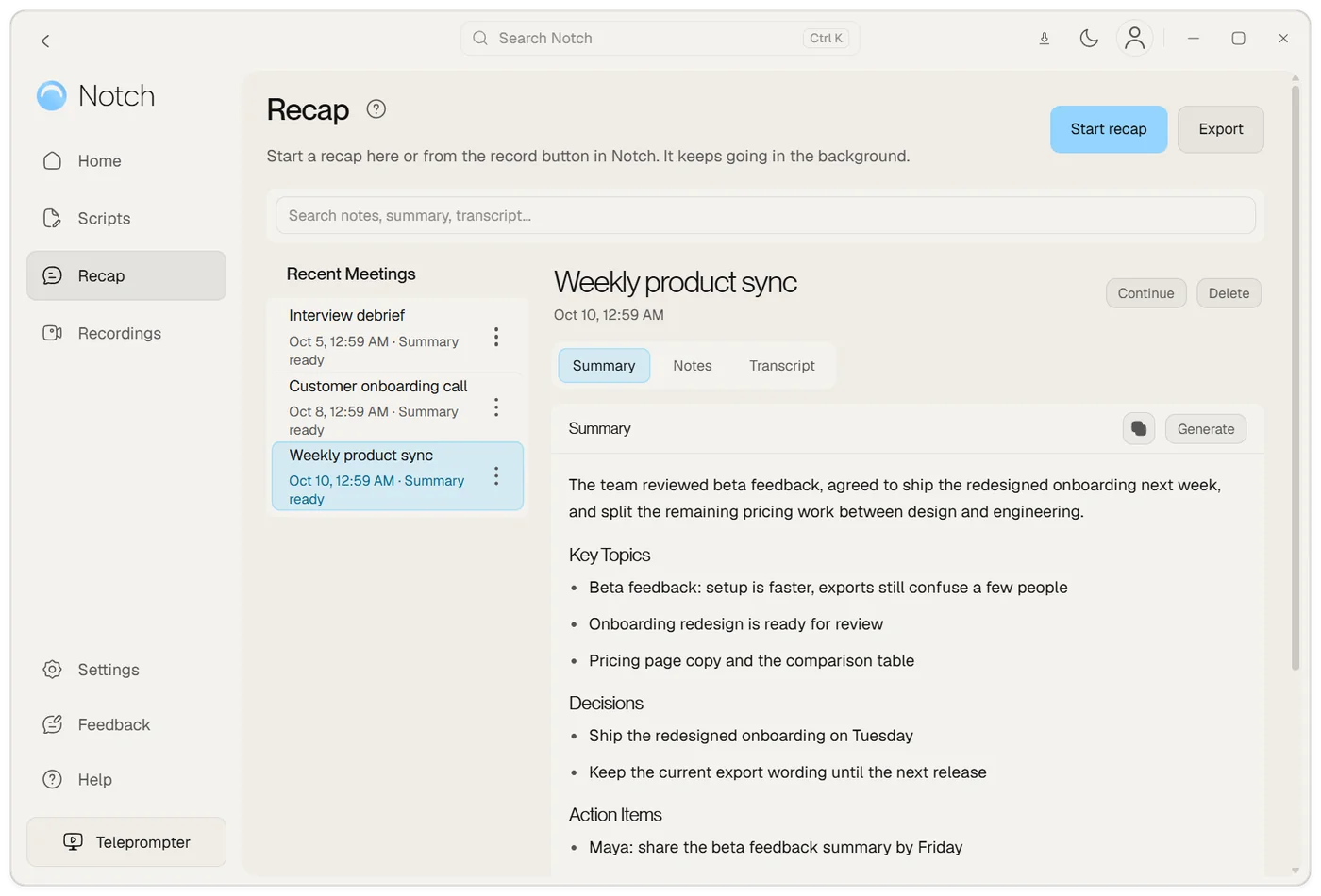
You get a summary, decisions and action items, timestamped chapters and a transcript that shows who said what. Name a speaker once and Notch recognises their voice in later recaps. Export the summary and transcript as text or PDF, save the recap to Notion, or turn action items into Linear issues.
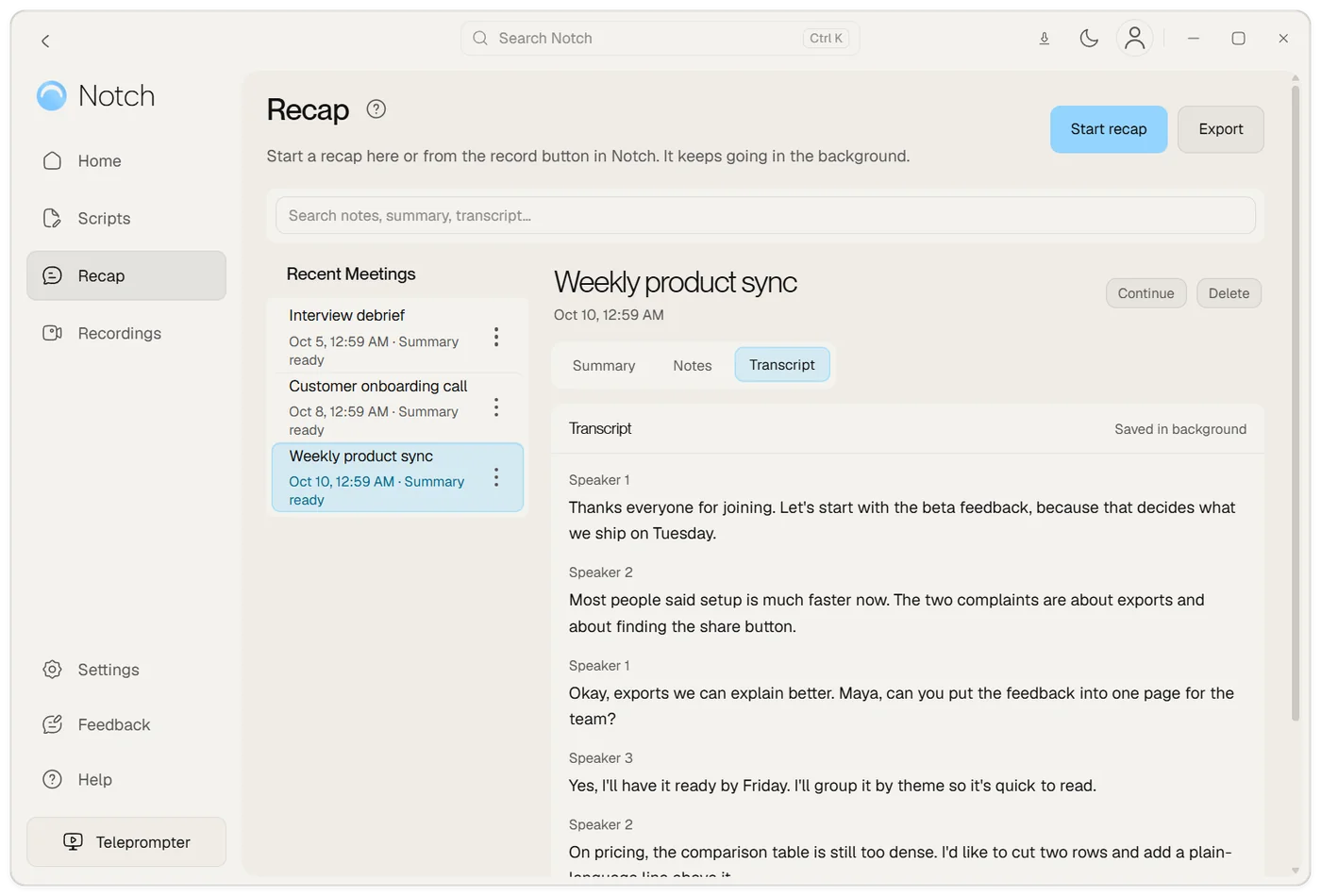
Read the recap before you send it, and fix any names or owners. Recaps use cloud transcription and come with Plus or Pro. You can try them with the free 7-day trial, no card required. The AI note taker page explains how it works, and there are guides for recording Google Meet and Teams.
Tell people you are recording
Say at the start that you are recording and why, for example "so I can listen instead of typing". Many companies and countries require everyone's consent. Meeting apps show a notice only for their own recordings, so when you record with Notch, tell people out loud and stop if anyone objects.
Frequently asked questions
What should you write down in a meeting?
Write down decisions, action items with one owner and a due date, numbers and dates people agree on, and questions left open. Skip who said what in each discussion unless the wording matters, such as a customer describing their problem.
How do you take notes and still take part in a meeting?
Write short keywords instead of sentences, and mark each line D for decision, A for action or Q for question. Set the page up before the call so you only fill gaps. If you have to lead and take notes at once, record the meeting and check the recap afterwards.
Is it better to take meeting notes by hand or on a laptop?
Handwriting makes you pick the key points, so it suits small meetings and one-on-ones. Typing is faster to tidy and share. Many people jot by hand during the call and type up only the decisions and actions afterwards.
Should I record a meeting instead of taking notes?
Record it when you need to lead the conversation, when details matter later, or when people missed the call. Always ask first and tell everyone you are recording. A recording still needs a short written summary, because few people watch a whole meeting again.
How do you share meeting notes?
Send them the same day to everyone invited, in an email or the team's shared document. Put the action items at the top so people see their tasks first. For formal meetings, turn them into minutes with the meeting minutes template.